Overview
Hyper-V provides enterprise-class virtualization with advanced networking capabilities and failover clustering for high availability. When implemented correctly, Hyper-V clusters deliver sub-second VM failover, predictable Live Migration performance, and converged networking that consolidates storage and VM traffic on shared adapters with guaranteed QoS.
This guide covers the complete Hyper-V networking and clustering lifecycle: vSwitch design and Switch Embedded Teaming (SET), Live Migration network tuning with SMB Direct/RDMA, bandwidth management with QoS policies, failover cluster configuration with proper quorum, Cluster-Aware Updating (CAU) automation, and disaster recovery procedures. We include PowerShell automation for every major operation and decision matrices tested across hundreds of production clusters.
Why Hyper-V Networking & Clustering Matter
Traditional standalone hypervisors create single points of failure where VM availability depends on a single physical host. When that host requires maintenance or experiences hardware failure, all VMs become unavailable for minutes to hours while administrators manually restore them elsewhere. Network misconfiguration causes Live Migration failures, VM network outages, and unpredictable performance where storage traffic competes with VM workloads for bandwidth.
Modern enterprise environments demand five-nines availability (99.999% uptime), which allows only 5.26 minutes of downtime per year. Achieving this requires eliminating single points of failure through clustering, automating VM failover to survive host failures, and architecting networks that provide deterministic performance even under heavy load. Hyper-V clustering with properly configured networking delivers these capabilities:
| Challenge | Traditional Approach | Hyper-V Clustering Solution | Business Impact |
|---|---|---|---|
| Host Failure | Manual VM restore from backup (1-4 hour RTO) | Automatic failover to surviving cluster node (10-30 second RTO) | Business continuity maintained; no user-visible outage for critical apps |
| Planned Maintenance | After-hours VM shutdowns with scheduled downtime windows | Live Migration with zero downtime; drain nodes during business hours | Eliminate maintenance windows; patch hosts without service interruption |
| Storage Traffic Congestion | Dedicated storage NICs consuming physical ports and switch bandwidth | Converged networking with QoS guarantees (SET + SMB Direct) | 50% reduction in NIC/cable/switch costs; predictable storage performance |
| Live Migration Bottleneck | Migrations taking 5-15 minutes over 1 GbE; application slowdowns during migration | Sub-60-second migrations over RDMA; no application performance impact | Enable workload balancing without user complaints; rapid DR failover |
| NIC Failure (Single Point) | LBFO teaming requires third-party drivers; inconsistent behavior across vendors | SET provides native Windows teaming inside vSwitch; survives NIC/cable/switch failures | No vendor lock-in; consistent failover behavior; simplified troubleshooting |
| Patch Management Complexity | Manually migrate VMs, patch host, reboot, test, repeat for each node (8-16 hours/cluster) | CAU orchestrates drain/patch/reboot/test automatically (2-4 hours/cluster unattended) | 75% reduction in patching labor; faster security compliance |
This article focuses on the intersection of networking and clustering where most Hyper-V problems occur: misconfigured vSwitches that break Live Migration, RDMA that fails silently falling back to slow TCP, QoS policies that don't activate causing storage starvation, and cluster quorum designs that create split-brain scenarios. We address these issues with validated configurations, detailed troubleshooting procedures, and automation that detects configuration drift before it causes outages.
Virtual Switch Architecture & Switch Embedded Teaming (SET)
vSwitch Types and Design Considerations
Hyper-V virtual switches provide network connectivity for VMs and management OS traffic through three distinct types, each serving different isolation and connectivity requirements:
| vSwitch Type | Connectivity | Use Cases | When to Use | Gotchas |
|---|---|---|---|---|
| External | VMs → Physical Network via host NIC(s) | Production VMs, clustered VMs, Live Migration, VM-to-internet | 99% of enterprise scenarios; required for clustering and external VM communication | Binding to physical NIC changes host management IP config; plan IP addressing carefully |
| Internal | VMs ↔ Host Only (no physical network) | Host-to-VM communication (monitoring agents, backups), isolated test networks | Lab environments, backup networks where VMs need host access but not external | No physical NIC means no external connectivity; VMs can't reach internet/domain |
| Private | VM ↔ VM Only (host isolated) | DMZ isolation, multi-tier app networks (web → app → DB), security testing | Security scenarios requiring VM-to-VM communication without host or external access | Host cannot reach VMs on private vSwitch; troubleshooting requires VM console access |
Create one External vSwitch per cluster using SET for NIC teaming. Avoid Internal/Private switches in production clusters—they prevent Live Migration and clustering. Use VLANs on the External switch for network segmentation instead of creating multiple vSwitches.
SET vs LBFO: The Teaming Decision
Windows Server provides two NIC teaming technologies: Load Balancing and Failover (LBFO) configured at the host OS level, and Switch Embedded Teaming (SET) configured inside the Hyper-V virtual switch. While LBFO has existed since Windows Server 2012, Microsoft deprecated it in Windows Server 2019+ in favor of SET for Hyper-V environments.
| Feature | LBFO (Load Balancing Failover) | SET (Switch Embedded Teaming) | Winner |
|---|---|---|---|
| RDMA Support | No — LBFO disables RDMA on teamed adapters | Yes — RDMA works on all SET team members | SET (critical for SMB Direct/Storage Spaces Direct) |
| Max Team Members | 32 NICs per team | 8 NICs per team | LBFO (rarely matters; most use 2-4 NICs) |
| QoS Integration | Limited — LBFO QoS conflicts with vSwitch QoS | Native — SET uses vSwitch QoS policies for bandwidth management | SET (unified QoS model simplifies config) |
| Dynamic vNIC Load Balancing | No — LBFO uses static hashing or switch-dependent modes | Yes — SET load balances vNICs across physical adapters dynamically | SET (better VM traffic distribution) |
| Failover Speed | 2-10 seconds (LACP renegotiation) | 1-3 seconds (vSwitch-level failover) | SET (faster VM network recovery) |
| Management Complexity | Separate tools (LBFO team + vSwitch config) | Single unified config (vSwitch includes teaming) | SET (fewer moving parts to troubleshoot) |
| Non-Hyper-V Servers | Works on any Windows Server role (file servers, DCs, etc.) | Hyper-V role required (vSwitch dependency) | LBFO (only option for non-hypervisors) |
If you need SMB Direct for Cluster Shared Volumes or Live Migration (and you do for any serious cluster), LBFO is disqualified immediately — it disables RDMA on all teamed adapters. This single limitation makes SET mandatory for modern Hyper-V clusters. I've seen three production migrations where teams configured LBFO during initial cluster builds, then discovered six months later that their "40 Gbps RDMA" storage was actually running at 1 Gbps TCP because RDMA silently fell back without alerting anyone.
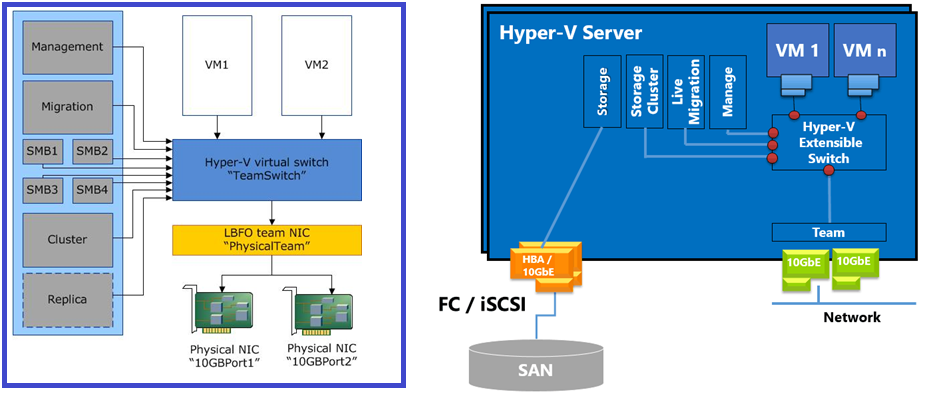
Converged Networking: Management, Storage, and Live Migration on Shared NICs
Converged networking consolidates multiple traffic types (management, storage, Live Migration, VM production) onto shared physical adapters, using QoS policies to guarantee bandwidth for critical workloads. This eliminates dedicated NIC sprawl where a four-node cluster might waste 16+ NICs on separate management/storage/migration networks, freeing physical ports and switch bandwidth while maintaining predictable performance.
A typical two-NIC converged design using SET looks like this:
| vNIC (Host) | Purpose | QoS Weight/Bandwidth | VLAN (if segregated) | IP Addressing |
|---|---|---|---|---|
| vEthernet (Management) | Host OS management, domain join, monitoring agents, remote management | 10% minimum (1 Gbps on 10 GbE; default QoS weight) | VLAN 10 (Management) | Static IP; redundant default gateway |
| vEthernet (SMB_CSV) | Cluster Shared Volume traffic (VHD/VHDX I/O for clustered VMs) | 50% reserved (5 Gbps on 10 GbE; highest priority for storage) | VLAN 20 (Storage) | Static IP; no default gateway (storage-only subnet) |
| vEthernet (LiveMigration) | Live Migration traffic (VM memory transfer, SMB compression/RDMA) | 40% reserved (4 Gbps on 10 GbE; second priority) | VLAN 30 (Migration) | Static IP; no default gateway |
Each vNIC is created as a management OS adapter (using
Add-VMNetworkAdapter -ManagementOS) attached to the SET-backed External
vSwitch, then configured with QoS minimum bandwidth weights that guarantee performance even
under full cluster load. VLANs provide Layer 2 segmentation for security and traffic
isolation, while IP subnetting ensures storage and migration traffic never route through
default gateways (performance optimization and security boundary).
Storage and Live Migration vNICs should never have default gateways configured. Assign them to dedicated /24 or /29 subnets (e.g., 10.10.20.0/24 for storage, 10.10.30.0/24 for migration) and leave the default gateway field blank. This prevents Windows from attempting to route storage or migration traffic through the network, which causes catastrophic performance degradation when CSV or Live Migration accidentally traverses VPN tunnels, WAN links, or firewalls.
PowerShell: Create SET-based vSwitch with Converged Networking
The following script creates a production-ready SET vSwitch with three management OS vNICs (Management, Storage, Live Migration), configures QoS minimum bandwidth weights, assigns VLANs, and sets static IPs. This is the foundation for all Hyper-V clusters using converged networking:
When you bind a physical NIC to
an External vSwitch, Windows removes the IP configuration from the physical
adapter and expects you to assign it to a management OS vNIC instead. I've seen three
cluster builds where administrators ran New-VMSwitch remotely via
PowerShell, didn't specify -AllowManagementOS $true, and immediately lost
remote connectivity to the host. The server was still running, but now had zero network
configuration. Recovery required iLO/IPMI console access to reconfigure the vSwitch.
Always run vSwitch creation from the local console or iLO/IPMI session
during initial setup, or ensure -AllowManagementOS $true is specified to
create the management vNIC automatically.
Live Migration Network Configuration & Performance
Live Migration Overview
Live Migration transfers running VMs between Hyper-V hosts with zero downtime by copying VM memory contents over the network, synchronizing storage state (for non-shared storage scenarios), and performing a rapid switchover (typically 10-30 seconds) where the source VM pauses, the destination VM activates, and network failover occurs. Users experience no service interruption beyond a momentary TCP retransmit delay.
Live Migration performance depends entirely on network bandwidth and latency. A 32 GB VM migrating over 1 GbE takes 5-8 minutes; over 10 GbE with compression, 60-90 seconds; over 10 GbE with SMB Direct/RDMA, 30-45 seconds. This performance difference matters during maintenance windows where you're draining an entire host: migrating 20 VMs at 8 minutes each = 160 minutes downtime window vs. 30 seconds each = 10 minutes total.
Live Migration Authentication & Network Selection
Live Migration uses two authentication methods and multiple network protocols. Understanding these options prevents the common "Live Migration failed: authentication error" and "migration stuck at 0%" problems:
| Authentication Method | Requirements | Security | When to Use |
|---|---|---|---|
| CredSSP | Both hosts in same AD domain or trusted domains | Secure — uses Kerberos under the hood; credentials cached on source | Domain-joined clusters (99% of production); default and recommended |
| Kerberos | Constrained delegation configured in AD (cumbersome setup) | Most secure — no credential caching; Kerberos delegation only | High-security environments; cross-domain migrations; workgroup clusters |
For network selection, Hyper-V chooses Live Migration paths based on IP subnet configuration and network prioritization:
| Network Type | Configuration | Performance | Common Mistakes |
|---|---|---|---|
| Any Available Network | Default — Hyper-V picks first reachable network (often management) | Poor — uses 1 GbE management links; competes with domain traffic | Never use in production; causes slow migrations and management network saturation |
| Selected Networks | Specify dedicated Live Migration subnets/vNICs | Good — uses 10 GbE or faster; isolated from management/VM traffic | Must configure on ALL cluster nodes; forgetting one node breaks migrations |
| SMB Direct (RDMA) | Enable SMB for Live Migration + RDMA-capable NICs on migration subnet | Best — near-line-rate transfer; minimal CPU usage; <50% faster | RDMA misconfiguration falls back silently to TCP; test with Get-SmbClientNetworkInterface |
A four-node cluster
experienced 12-minute Live Migrations for 16 GB VMs, despite having 10 GbE RDMA NICs.
Troubleshooting revealed that during initial cluster setup, one node's Live Migration
network selection was set to "Any available network" while the other three specified the
dedicated migration subnet. Windows fell back to the lowest common denominator—the 1 GbE
management network—for all migrations involving that node. Even worse, because RDMA
doesn't work over the management vNIC (different subnet, no RDMA config), migrations
silently fell back to TCP compression. The fix took 30 seconds: run
Set-VMHost -VirtualMachineMigrationPerformanceOption SMB on the
misconfigured node and specify the migration subnet. Migrations immediately dropped to
45 seconds.
Lesson: Always validate Live Migration settings on EVERY cluster node, not just the first one you configure.
SMB Direct & RDMA: The Live Migration Game-Changer
Remote Direct Memory Access (RDMA) allows NICs to transfer data directly between server memory buffers without involving the CPU, bypassing the network stack entirely. For Live Migration, this means transferring 32 GB of VM memory at near-line-rate speeds (9.5+ Gbps on 10 GbE) while consuming <5% CPU on both source and destination hosts.
Hyper-V leverages RDMA through SMB Direct (SMB 3.0+ protocol enhancement), which requires:
- RDMA-capable NICs — Mellanox/NVIDIA ConnectX-4 or newer, Broadcom BCM957xxx, Intel E810, Chelsio T6
- RDMA protocol enabled — iWARP (Intel), RoCE v2 (Mellanox/Broadcom), or InfiniBand (rare in Hyper-V)
- DCB/PFC configuration — Required for RoCE v2 to prevent packet loss under congestion (iWARP doesn't need DCB)
- SMB Direct enabled —
Set-VMHost -VirtualMachineMigrationPerformanceOption SMB
| RDMA Protocol | Transport | Lossless Ethernet (DCB) Required? | Vendor Support | Complexity |
|---|---|---|---|---|
| iWARP | TCP/IP (Internet Wide Area RDMA Protocol) | No — TCP handles retransmits | Intel, Chelsio | Easiest — works on standard Ethernet; no DCB config; routable |
| RoCE v2 | UDP/IP (RDMA over Converged Ethernet) | Yes — requires DCB/PFC to prevent packet loss | Mellanox/NVIDIA, Broadcom | Moderate — best performance; requires DCB on NICs and switches; routable |
| InfiniBand | Native IB fabric | N/A (not Ethernet) | Mellanox/NVIDIA | Highest — dedicated fabric; excellent for HPC; rare in Hyper-V |
DCB (Data Center Bridging) configuration for RoCE v2 ensures lossless Ethernet by implementing Priority Flow Control (PFC), which pauses traffic on a congested priority class instead of dropping packets. RDMA cannot tolerate packet loss—a single dropped frame causes the RDMA connection to reset and fall back to TCP. Here's the required DCB configuration for RoCE v2:
DCB configuration on the Hyper-V host is only
half the equation. Your network switches must also support and have DCB/PFC
enabled on the ports connected to your RDMA NICs. For Cisco Nexus:
priority-flow-control mode on. For Dell/Force10:
dcb priority-flow-control mode on. For Arista:
priority-flow-control on. Consult your switch vendor's
documentation—misconfigured or missing switch-side DCB is the #1 cause of "RDMA
not working" problems. Use Get-SmbClientNetworkInterface to verify
RDMA is active; RdmaCapable: True confirms it's working.
Simultaneous Live Migrations & Performance Tuning
By default, Hyper-V performs one Live Migration at a time per host. For clusters with dozens of VMs, this serialization creates unacceptably long maintenance windows. Hyper-V supports simultaneous migrations (configurable up to 255 concurrent migrations per host), limited only by available network bandwidth and memory bandwidth.
| Configuration | Simultaneous Migrations | Expected Throughput (10 GbE RDMA) | When to Use |
|---|---|---|---|
| Default (Sequential) | 1 migration at a time | ~9.5 Gbps per migration (near line rate) | Never in production — wasteful; only useful for troubleshooting |
| Conservative (2-4 simultaneous) | 2-4 concurrent migrations | ~2.5-4.5 Gbps per migration (bandwidth shared) | Standard production clusters; balances speed and stability |
| Aggressive (8-16 simultaneous) | 8-16 concurrent migrations | ~600 Mbps - 1.2 Gbps per migration | Large clusters (50+ VMs/host); emergency drains; maximize throughput over latency |
Configure simultaneous migrations via PowerShell:
A team configured -MaximumVirtualMachineMigrations 8 expecting faster
drains, but migrations actually slowed down. Investigation revealed they had only 10 GbE
of migration bandwidth total, so 8 simultaneous migrations meant each got ~1.25
Gbps instead of the full 9.5 Gbps. For their 32 GB VMs, this increased
per-migration time from 30 seconds to 3+ minutes, actually extending their
maintenance window. The fix: reduce to
-MaximumVirtualMachineMigrations 2, allowing each migration to
consume ~5 Gbps (finishing in 50 seconds). Total drain time for 16 VMs dropped
from 48 minutes (8 migrations * 3 min avg * 2 batches) to 13 minutes (2
migrations * 50 sec * 8 batches).
Lesson: More simultaneous migrations doesn't always mean faster total time—test your specific environment.
PowerShell: Configure Live Migration with SMB Direct
This script configures Live Migration to use dedicated networks with SMB Direct (RDMA), sets simultaneous migration count, and validates RDMA is functioning correctly:
Failover Clustering & Cluster-Aware Updating (CAU)
Cluster Creation and Validation
Hyper-V clusters provide high availability for VMs by pooling multiple hosts into a single resource group. Failover Clustering ensures VMs are automatically restarted on surviving nodes after hardware or OS failures, and enables rolling maintenance with zero downtime using Live Migration. Proper cluster creation and validation are critical for production reliability.
| Step | Purpose | PowerShell Command |
|---|---|---|
| Validate cluster configuration | Checks hardware, network, storage, and OS for cluster readiness | Test-Cluster -Node Node1,Node2,Node3 |
| Create the cluster | Initializes cluster object, assigns IP, configures core resources | New-Cluster -Name HVCluster -Node Node1,Node2,Node3 -StaticAddress 10.10.40.10
|
| Configure cluster quorum | Ensures cluster survives node/network failures (disk, file share, cloud witness) | Set-ClusterQuorum -FileShareWitness \\FS01\Quorum |
| Enable CSV (Cluster Shared Volumes) | Allows all nodes to access shared storage for VM placement/failover | Add-ClusterSharedVolume -Name "Cluster Disk 1" |
Cluster-Aware Updating (CAU)
CAU automates the patching process for Hyper-V clusters by orchestrating node draining, patch installation, reboot, and health validation in a rolling fashion. This eliminates manual maintenance windows and ensures security compliance with minimal downtime.
| CAU Step | Description | PowerShell Command |
|---|---|---|
| Install CAU tools | Installs CAU PowerShell module and GUI | Install-WindowsFeature RSAT-Clustering-PowerShell, RSAT-Clustering-CmdInterface, RSAT-Clustering-AutomationServer
|
| Configure CAU self-updating | Schedules recurring update runs (e.g., every Sunday 2am) | Add-CauClusterRole -ClusterName HVCluster -MaxFailedNodes 1 -RequireAllNodesOnline
|
| Run CAU on-demand | Performs immediate update run (drain, patch, reboot, validate) | Invoke-CauRun -ClusterName HVCluster -EnableFirewallRules
|
Workload Placement Policies: Affinity, Anti-Affinity, Priority, and Node Preferences
Failover Clustering provides fine-grained placement controls to keep critical workloads available and distributed correctly across nodes. Use these policies to express where VMs can run, avoid risky co-location, and control startup/failover order:
| Policy | What It Does | Typical Use Case | Key Cmdlets |
|---|---|---|---|
| Anti-Affinity | Discourages VMs with the same tag from running on the same node. | Separate members of the same HA pair (e.g., SQL AG prim/secondary). | Set-ClusterGroup -AntiAffinityClassNames |
| Priority | Controls start/failover order and delays between priority tiers. | Bring infra services up first (DC/DNS), then apps, then background jobs. | Set-ClusterGroup -Priority |
| Preferred Owners | Defines preferred/possible nodes and their precedence for a VM. | Keep latency-sensitive VMs near storage/clients; restrict lab VMs. | Set-ClusterOwnerNode, Get-ClusterOwnerNode |
Hyper-V does not offer a formal affinity (keep-together) rule. To encourage co-location, assign the same Preferred Owners list to related VMs and avoid broad possible-owner sets across the entire cluster. For separation guarantees, use Anti-Affinity.
Configure Anti-Affinity (keep paired VMs on different hosts)
Tag two or more clustered VMs with the same AntiAffinityClassNames value to
discourage co-location. The cluster scheduler honors the tag during placement and failover.
Set VM Failover/Startup Priority
Use -Priority to order recovery. High-priority groups start first, followed by
Medium, then Low. NoAutoStart keeps a group stopped after cluster start.
Restrict/Prefer Nodes for a VM
Define preferred and possible owners to constrain where a VM can run and in which order the cluster should try nodes during failover.
Security Hardening & Access Control
Hyper-V Security Best Practices
Hyper-V hosts are Tier 0 infrastructure—compromise of a hypervisor grants attackers access to all hosted VMs and their data. Security hardening must address physical access, network isolation, credential management, and VM escape prevention through defense-in-depth controls.
| Security Layer | Threat Mitigated | Implementation | PowerShell Command |
|---|---|---|---|
| Shielded VMs + Host Guardian Service (HGS) | VM data theft via physical disk access or admin compromise | Encrypt VM disks with BitLocker, enforce TPM attestation via HGS | Enable-VMTPM -VMName VM01; New-VHD -Path C:\VMs\VM01.vhdx -Shielded
|
| Isolated management networks | Lateral movement from VM networks to host management plane | Separate VLANs/physical NICs for management, Live Migration, storage, VM traffic | Set-VMNetworkAdapter -ManagementOS -Name "Management" -VlanId 10
|
| Credential Guard + Restricted Admin | Pass-the-hash attacks stealing domain admin credentials from memory | Enable Credential Guard on hosts, use gMSA for cluster/CAU authentication | Enable-WindowsOptionalFeature -Online -FeatureName IsolatedUserMode
|
| Disable unnecessary integration services | VM escape via guest-to-host communication channels | Disable Time Sync, KVP, VSS in untrusted VMs | Disable-VMIntegrationService -VMName VM01 -Name "Time Synchronization"
|
| Port ACLs on vNICs | VM spoofing attacks (MAC/IP/DHCP guard bypass) | Enable MAC address filtering, DHCP guard, router guard on vSwitch ports | Set-VMNetworkAdapter -VMName VM01 -MacAddressSpoofing Off -DhcpGuard On
|
Running non-production or untrusted workloads on the same Hyper-V cluster as Tier 0 services (DCs, PAWs, ADFS) is dangerous. Compromise of a dev/test VM can pivot to the host and laterally to production VMs.
Solution: Separate clusters for different trust boundaries (Tier 0/1/2), enforce network isolation between tiers, use Shielded VMs for sensitive workloads.
Disaster Recovery & Business Continuity
Hyper-V Replica and Backup Strategies
Hyper-V Replica provides asynchronous VM replication to secondary sites for disaster recovery, while backup integration with VSS ensures application-consistent snapshots. Together, these technologies enable RPO/RTO targets aligned with business requirements—Recovery Point Objective (RPO) defines maximum acceptable data loss (measured in time: "How much data can we afford to lose?"), while Recovery Time Objective (RTO) defines maximum acceptable downtime (measured in time: "How quickly must we restore service?").
| DR Technology | RPO/RTO | Use Case | Configuration |
|---|---|---|---|
| Hyper-V Replica (async) | RPO: 5 min (or 15 min), RTO: <15 min | Site-to-site DR, no shared storage required | Enable-VMReplication -VMName VM01 -ReplicaServerName DR-HV01 -ReplicationFrequency 300
|
| Hyper-V Replica Extended (chain) | RPO: 15 min (primary→DR1), 30 min (DR1→DR2) | Multi-site DR for critical VMs | Set-VMReplication -VMName VM01 -ExtendedReplicationServer DR2-HV01
|
| Storage Replica (sync/async) | RPO: 0 (sync) or 5 min (async), RTO: <5 min | Block-level replication for entire clusters (requires DataCenter edition) | New-SRPartnership -SourceRG RG01 -DestinationRG RG02 -ReplicationMode Synchronous
|
| VSS-aware VM backup | RPO: 24 hours (daily), RTO: 1-4 hours | Application-consistent backups for SQL/Exchange/AD VMs | Checkpoint-VM -VMName VM01 -CheckpointType ProductionCheckpoint
|
Schedule quarterly failover drills using Test-Failover cmdlets to validate replica VMs boot successfully without impacting production. Many organizations discover broken replica VMs only during actual disasters—corrupted VSS snapshots, missing drivers, or network config drift cause RTO violations. Automated DR testing catches these issues early.
Maintenance Schedule & Health Monitoring
Proactive maintenance prevents performance degradation, capacity exhaustion, and unexpected outages. The following comprehensive schedule balances operational overhead with infrastructure reliability, organized by frequency to ensure consistent cluster health and availability.
Daily Tasks
| # | Name | Description | Task | Impact Definition | Automated |
|---|---|---|---|---|---|
| 1 | Cluster Node Status Check | Verify all cluster nodes are online and responding | Run Get-ClusterNode | Select Name, State, StatusInformation.
All nodes should show State=Up. |
Early detection of node failures before they impact VM availability. Prevents cluster quorum loss scenarios. | Yes - Schedule via Task Scheduler with email alerts on State≠Up |
| 2 | CSV Space Monitoring | Monitor Cluster Shared Volume free space to prevent out-of-disk scenarios | Run
Get-ClusterSharedVolume | Select Name, @{N='FreeGB';E={[math]::Round($_.SharedVolumeInfo.Partition.FreeSpace/1GB,2)}}.
Alert if <10% free. |
Prevents VM crashes and data corruption from disk full conditions. Allows proactive capacity planning. | Yes - Integrate with monitoring system (SCOM, Zabbix, Nagios) |
| 3 | Hyper-V Service Health | Verify Hyper-V Virtual Machine Management service running on all nodes | Run
Get-Service vmms -ComputerName (Get-ClusterNode).Name | Where Status -ne 'Running'.
Should return no results.
|
Ensures VM management operations (start/stop/migrate) function properly. Service crashes cause VM outages. | Yes - Configure service recovery actions to auto-restart, alert on repeated failures |
| 4 | Event Log Review (Critical/Error) | Review Hyper-V and Failover Clustering event logs for errors in last 24 hours | Filter Event Logs: Microsoft-Windows-Hyper-V-* and FailoverClustering for Level=Error. Prioritize Event IDs: 18590 (VM crash), 1069 (resource failed), 1135 (node removed). | Early warning of hardware failures, configuration issues, network problems before they cause widespread outages. | Partial - Use PowerShell to export errors to CSV, manual review required for triage |
Weekly Tasks
| # | Name | Description | Task | Impact Definition | Automated |
|---|---|---|---|---|---|
| 1 | Hyper-V Replica Health Check | Verify all replica VMs are replicating successfully without lag | Run
Get-VMReplication | Where {$_.Health -ne 'Normal' -or $_.State -ne 'Replicating'} | Select VMName, Health, State, LastReplicationTime.
Investigate any unhealthy replicas.
|
Ensures DR capability is functional. Replication failures discovered during actual disaster cause extended RTO violations. | Yes - Get-HyperVClusterHealth script includes replica health checks |
| 2 | VM Checkpoint Cleanup | Remove old VM checkpoints to prevent chain exhaustion and performance degradation | Run
Get-VM | Get-VMCheckpoint | Where CreationTime -lt (Get-Date).AddDays(-7) | Remove-VMCheckpoint.
Review before deletion for production VMs.
|
Prevents checkpoint chain corruption (>50 checkpoints causes VM boot failures). Reclaims storage space on CSVs. | Yes - Schedule with -WhatIf for reporting, manual approval for deletion |
| 3 | Live Migration Performance Test | Test Live Migration between nodes to verify RDMA/SMB Direct performance | Migrate test VM between nodes, measure time with
Measure-Command {Move-VM -Name TestVM -DestinationHost Node2}.
64GB VM should complete in <2 minutes with RDMA. |
Detects silent RDMA failures before production migrations are impacted. Validates network configuration remains optimal. | Partial - Automate migration test, manual interpretation of results required |
| 4 | Backup Validation | Verify VM backups completed successfully and VSS snapshots are application-consistent | Review backup job logs for all VMs. Test restore of 1-2 VMs to isolated network monthly to verify recoverability. | Ensures backup/restore capability is functional. Many organizations discover backup failures only during actual recovery attempts. | Partial - Backup software provides success/failure reports, restore testing requires manual intervention |
Monthly Tasks
| # | Name | Description | Task | Impact Definition | Automated |
|---|---|---|---|---|---|
| 1 | Cluster Validation | Run full cluster validation to detect network/storage/quorum issues | Run Test-Cluster -Cluster HVCluster during maintenance window.
Review report for warnings/failures. Address issues before they cause
failovers. |
Proactively identifies misconfigurations, degraded hardware, network problems. Prevents unplanned outages during failover events. | Yes - Schedule monthly, export results to network share for trending analysis |
| 2 | CSV Rebalancing | Distribute CSV ownership across nodes for load balancing and failover readiness | Run
Get-ClusterSharedVolume | Move-ClusterSharedVolume -Node (Get-ClusterNode | Get-Random).Name.
Verify ownership is distributed evenly.
|
Prevents single node from becoming CSV bottleneck. Ensures failover capability is exercised regularly. | Yes - PowerShell script with randomized node selection |
| 3 | RDMA/SMB Multichannel Verification | Verify RDMA NICs are active and SMB Direct connections are established | Run
Get-SmbMultichannelConnection; Get-NetAdapterRdma | Where Enabled -eq $true.
Alert if RDMA connection count is 0 or adapters disabled.
|
Detects silent RDMA failures where Live Migration falls back to slow TCP. Prevents 15-minute migrations instead of 30-second migrations. | Yes - Included in Get-HyperVClusterHealth script |
| 4 | CAU Run (Patch Tuesday + 7 days) | Execute Cluster-Aware Updating to apply Windows patches with zero downtime | Run
Invoke-CauRun -ClusterName HVCluster -EnableFirewallRules -Force.
Monitor progress, validate all nodes return to production after patching.
|
Security compliance (patch within 30 days of release). Automated orchestration eliminates 8-16 hours of manual patching labor per month. | Yes - CAU self-updating mode or scheduled via Task Scheduler |
| 5 | VM Resource Utilization Review | Analyze VM CPU/memory usage to identify right-sizing opportunities | Run Get-VM | Measure-VM | Sort AvgCPUUsage -Descending.
Identify VMs with <10% avg CPU (oversized) or>80% avg CPU (undersized). |
Optimizes resource allocation, reclaims capacity from oversized VMs, prevents performance issues from undersized VMs. | Yes - Export to CSV for trending, manual review for right-sizing decisions |
| 6 | Integration Services Version Check | Verify all VMs are running current integration services version | Run
Get-VM | Select Name, IntegrationServicesVersion, @{N='NeedsUpdate';E={$_.IntegrationServicesState -eq 'UpdateRequired'}}.
Update outdated VMs during maintenance windows.
|
Ensures VMs benefit from latest performance/reliability improvements. Prevents compatibility issues during host upgrades. | Partial - Detection automated, updates require manual scheduling per VM |
Quarterly Tasks
| # | Name | Description | Task | Impact Definition | Automated |
|---|---|---|---|---|---|
| 1 | Failover Testing | Simulate node failure to verify VM failover and cluster quorum behavior | During maintenance window: gracefully shutdown one node, verify VMs migrate automatically, validate quorum maintained. Test worst-case: simultaneous failure of 2 nodes in different datacenters. | Validates cluster configuration survives real failures. Discovers quorum witness issues, network split-brain scenarios before production outage. | No - Requires manual coordination, monitoring during test |
| 2 | Capacity Planning Review | Analyze growth trends and project 12-month resource needs | Review CSV growth rate, VM count trends, CPU/memory utilization averages over last 90 days. Project capacity exhaustion date. Plan expansion if <6 months runway. | Prevents emergency hardware purchases due to capacity exhaustion. Allows budget planning for expansion. | Partial - Data collection automated via performance counters, manual analysis for trending |
| 3 | DR Replica Failover Test | Test failover of replica VMs to secondary site without impacting production | Use Start-VMFailover -VMName TestVM -AsTest to boot replica VM
on isolated network. Verify boot succeeds, application starts, data is
current. |
Validates DR capability is functional end-to-end. Discovers issues with replica VM configs, driver mismatches, network dependencies. | No - Requires isolated network setup, manual validation of VM boot and application health |
| 4 | Firmware and Driver Updates | Review and apply host firmware (BIOS, iDRAC, NIC, HBA) and driver updates | Check vendor support sites for updated firmware/drivers. Review release notes for bug fixes, performance improvements. Apply during maintenance window with rolling updates. | Resolves hardware bugs, improves stability, patches security vulnerabilities in firmware. Reduces support calls from hardware issues. | No - Vendor-specific tools required, compatibility testing needed before production deployment |
Semi-Annual Tasks
| # | Name | Description | Task | Impact Definition | Automated |
|---|---|---|---|---|---|
| 1 | Security Baseline Review | Audit Hyper-V host security configuration against CIS/Microsoft baselines | Run security baseline scripts (Microsoft Security Compliance Toolkit, CIS benchmarks). Review findings for deviations. Remediate or document exceptions. | Ensures host security posture remains strong. Detects configuration drift from security hardening standards. | Partial - Baseline scanning automated, remediation requires manual review/approval |
| 2 | Network Configuration Audit | Review vSwitch configs, VLAN assignments, QoS policies for consistency across cluster | Export vSwitch configurations from all nodes with
Get-VMSwitch | Export-Clixml. Compare for consistency. Validate
QoS policies are applied correctly.
|
Prevents configuration drift between nodes causing unpredictable failover behavior. Ensures QoS guarantees are enforced. | Yes - Export and diff automation possible, manual review of discrepancies |
| 3 | Documentation Update | Update cluster architecture diagrams, runbooks, VM inventory, support contacts | Review and update: network diagrams, CSV/storage mappings, VM-to-business service mapping, escalation contacts, DR procedures. | Ensures accurate documentation during outages. New team members can onboard faster. Reduces MTTR during incidents. | No - Requires manual effort to validate and update documentation |
Annual Tasks
| # | Name | Description | Task | Impact Definition | Automated |
|---|---|---|---|---|---|
| 1 | Architecture Review | Assess if current Hyper-V architecture meets business needs and identify modernization opportunities | Review: cluster size, storage architecture (SAN vs HCI), networking (1GbE vs 10/25GbE), DR strategy. Evaluate Azure Stack HCI, Windows Server upgrade paths. | Aligns infrastructure with business strategy. Identifies opportunities for cost savings (cloud-hybrid), performance improvements, simplified management. | No - Requires stakeholder interviews, business requirements analysis, ROI calculations |
| 2 | Disaster Recovery Full Test | Execute complete DR scenario: simulate primary site loss, failover all VMs to secondary site | Schedule DR drill with stakeholders. Fail over all replica VMs to secondary site. Validate applications function correctly. Measure RTO/RPO achieved vs targets. Document lessons learned. | Validates entire DR plan end-to-end. Discovers dependencies, runbook gaps, capacity issues before real disaster. Satisfies compliance requirements for DR testing. | No - Requires coordination across teams, manual validation of application functionality |
| 3 | Training and Knowledge Transfer | Conduct Hyper-V operations training for support team, update skill matrix | Schedule training sessions: cluster management, VM troubleshooting, Live Migration deep-dive, CAU operations. Update team skill matrix. Document tribal knowledge in wiki. | Reduces single points of failure (knowledge silos). Improves MTTR during incidents. Prepares team for staff turnover. | No - Requires instructor-led training, hands-on labs, documentation effort |
As-Needed Tasks
| # | Trigger | Task | Priority | Notes |
|---|---|---|---|---|
| 1 | Event ID 18590 (VM crashed/unexpected shutdown) | Investigate VM crash dumps, host logs, recent changes. Restore VM from backup if corruption suspected. | Critical | VM crashes indicate host hardware failure, integration services bugs, or memory corruption. Isolate root cause before restarting VM. |
| 2 | Cluster quorum lost (Event ID 1177) | Immediately investigate node failures, network partitions, witness unavailability. Force quorum if necessary to restore service. | Critical | Cluster offline = all VMs offline. Use
Start-ClusterNode -ForceQuorum cautiously to prevent
split-brain.
|
| 3 | CSV entering redirected I/O mode | Check network connectivity between node and CSV owner. Resolve within 2 hours to prevent performance degradation. | Critical | Redirected I/O causes 10x performance penalty. VMs on affected CSV experience latency spikes, application timeouts. |
| 4 | Live Migration fails repeatedly | Verify network connectivity, RDMA status, credential delegation, SMB signing compatibility. Check Event ID 21502 for details. | High | Failed migrations prevent maintenance, reduce cluster flexibility. Common causes: CredSSP disabled, RDMA NIC failed, incompatible SMB versions. |
| 5 | Adding new node to cluster | Validate hardware compatibility, apply same firmware/driver versions. Run
Test-Cluster with new node before adding. Configure identical
vSwitches, CSV access.
|
High | Mismatched configurations cause unpredictable failover behavior. Ensure new node matches cluster baseline exactly. |
| 6 | Performance degradation reported by users | Check CSV latency, RDMA failover to TCP, noisy neighbor VMs, host CPU/memory saturation. Use Performance Monitor counters for deep-dive. | High | Slowness is often storage-related (CSV over network), RDMA failure (check SMB Multichannel), or resource contention (oversized VMs). |
| 7 | Network infrastructure change (switch firmware, VLAN changes) | Review impact on cluster networks (management, Live Migration, storage). Re-verify RDMA/DCB/PFC settings. Test Live Migration post-change. | Medium | Network changes frequently break RDMA, disable DCB/PFC. Always validate RDMA connectivity after network maintenance. |
| 8 | VM migration from Gen1 to Gen2 | Export VM, create Gen2 VM with same specs, attach VHD (convert to VHDX if needed), configure vTPM/Secure Boot, test boot, cutover via Live Migration. | Medium | Gen2 required for Secure Boot, vTPM, Shielded VMs. Test thoroughly—Gen1→Gen2 conversion can cause boot failures if drivers missing. |
Automation Script: Hyper-V Cluster Health Check
The
Get-HyperVClusterHealth PowerShell script consolidates many of the above
checks into a single report. It performs the following validations:
- Cluster node status (Up/Down)
- CSV health and redirected I/O status
- RDMA/SMB Multichannel connection status
- VM checkpoint presence
- Integration Services version compliance
- Storage Replica health (if applicable)
War Stories: Production Lessons Learned
Datacenter team upgraded switch firmware during maintenance window.
Post-upgrade, Live Migrations took 15 minutes instead of 30 seconds for 64GB
VMs—no errors in Event Viewer. Root cause: Switch firmware reset DCB/PFC to
defaults, disabling lossless Ethernet. RDMA silently fell back to TCP without
alerting. SMB Multichannel showed "0 RDMA connections" but no one monitored that
metric. Lesson: Monitor
Get-SmbMultichannelConnection -IncludeNotSelected and alert when
RDMA drops below expected count.
Three-node cluster configured with file share witness on domain controller. DC rebooted for patches at same time network switch failed in datacenter A (2 nodes). Quorum votes: Node3=1, witness=0 (DC offline). Cluster lost quorum and all VMs went offline despite Node3 being healthy. Lesson: Use cloud witness (Azure Storage) or disk witness on separate storage fabric. Never put witness on infrastructure that shares fate with cluster nodes.
Migrated 200 VMs from Gen1 to Gen2 (for Secure Boot + vTPM) across 8-node cluster using PowerShell automation. Script: export VM config, create Gen2 VM, attach existing VHD (converted to VHDX if needed), configure vTPM, Live Migrate, validate boot, remove old VM. Entire migration completed during business hours with zero user-visible downtime. Key: Pre-stage Gen2 VMs on new nodes, use Live Migration for final cutover, roll back if boot fails.
Resources & Further Reading
- Microsoft Docs: Hyper-V Technology Overview
- Failover Clustering Overview
- Storage Replica Documentation
- Manage Hyper-Converged Infrastructure with Windows Admin Center
- Azure Stack HCI Network Requirements (applicable to Hyper-V)
- Cluster-Aware Updating (CAU) Best Practices
- Guarded Fabric and Shielded VMs
- IT Infrastructure Housekeeping Tasks — includes Hyper-V maintenance automation
- DFS & DFS-R Implementation — complementary distributed storage article