Introduction: The Hidden Criticality of DHCP
When executives discuss "critical infrastructure," they mention Active Directory, DNS, and email systems. DHCP rarely makes the list—until it fails. In enterprise environments, DHCP is the invisible foundation that enables automatic IP address allocation for tens of thousands of devices: workstations, servers, mobile devices, IoT sensors, and network equipment. When DHCP services become unavailable or misconfigured, the impact cascades instantly: new devices can't join the network, existing leases expire causing connectivity loss, and VPN clients fail to reconnect. Organizations discover too late that DHCP isn't just a convenience feature—it's a Tier 0 dependency that must be architected with the same rigor as domain controllers and DNS servers.
The business impact of DHCP failures extends far beyond "users can't connect." Consider: help desk tickets surge as devices lose network connectivity seemingly at random, automated systems fail when they can't obtain IP addresses after reboot, branch offices become isolated when WAN links flap and DHCP servers are unreachable, and security appliances lose configuration when they can't renew DHCP leases. In modern environments where zero-touch provisioning relies on DHCP options to deliver PXE boot servers, SCCM/MDT parameters, and VoIP controller addresses, a DHCP outage doesn't just disrupt existing services—it completely halts new deployment pipelines. I've witnessed scenarios where a single misconfigured DHCP scope caused a Fortune 500 company to lose $2.3 million in a four-hour outage because manufacturing floor systems couldn't obtain IP addresses after a power event.
The technical complexity of enterprise DHCP infrastructure is routinely underestimated. Organizations must balance competing requirements: high availability (implementing failover or split-scope configurations), scope exhaustion prevention (monitoring lease utilization and implementing proper subnet sizing), rogue DHCP server protection (AD authorization and network access control), option inheritance complexity (understanding the server→scope→class→reservation hierarchy), multicast scope management (for imaging and software distribution), and vendor interoperability (supporting non-Windows DHCP clients with varying RFC compliance). The choice between DHCP failover and split-scope isn't merely technical—it's a business decision that affects recovery time objectives, administrative overhead, and long-term operational costs. Most organizations implement DHCP based on "what worked at my last job" rather than engineering a solution that matches their specific requirements, disaster recovery capabilities, and administrative maturity.
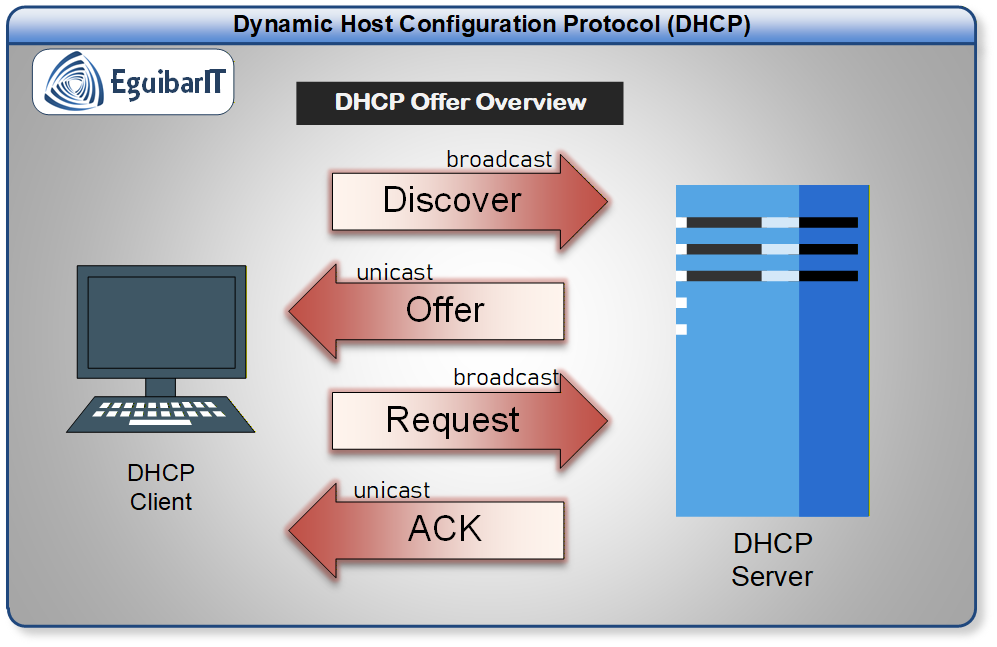
From a security perspective, DHCP represents both a critical trust boundary and a potential attack vector. DHCP servers must be protected as Tier 0 infrastructure because they can deliver malicious DNS servers, rogue WPAD configurations, and fake gateway addresses—effectively hijacking all client communications. The DHCP authorization mechanism in Active Directory provides crucial protection against rogue DHCP servers, but only if implemented correctly and monitored continuously. Audit logging of DHCP activities (lease assignments, scope modifications, option changes) must be enabled and forwarded to centralized SIEM systems to detect reconnaissance activities, unauthorized modifications, and potential compromise indicators. This guide provides a comprehensive approach to DHCP infrastructure: from initial planning and design decisions, through PowerShell-automated deployment, to security hardening and operational maintenance procedures that ensure your DHCP environment supports—rather than undermines—your organization's reliability and security posture.
War Story: When "High Availability" Became "Highly Unavailable"
The Situation: A regional healthcare system implemented DHCP "high availability" by configuring split-scope replication across two DHCP servers—80% of addresses on Server A, 20% on Server B—following advice from an online tutorial. The configuration worked flawlessly for eighteen months. During a routine maintenance window, Server A was taken offline for hardware upgrades. Within 45 minutes, Server B's 20% allocation was exhausted, and all new DHCP requests began failing. Workstations attempting to renew leases were denied because their original addresses were in Server A's 80% pool. Over 3,200 clinical workstations lost network connectivity, medical imaging systems went offline, and the electronic health record system became partially unavailable. The outage lasted 6.5 hours while engineers frantically reconfigured DHCP scopes to restore service.
The Impact: The healthcare system postponed 47 scheduled procedures, diverted 12 ambulances to other facilities, and reverted to paper-based charting for all departments. Regulatory investigations followed because patient care was impacted. The post-incident review discovered the root cause: the implementation team didn't understand that split-scope configurations don't provide automatic failover—each server only services its own address pool. During the outage, Server B continued serving its 20% pool perfectly, while 80% of the network was effectively dead. The financial impact exceeded $890,000 in lost revenue, regulatory fines, and emergency consulting fees.
The Lesson: Split-scope and DHCP failover are fundamentally different architectures with different failure modes, administrative overhead, and recovery characteristics. Split-scope provides load distribution but requires manual intervention during server failures and careful capacity planning to ensure each server's pool can handle the full load if needed. DHCP failover (introduced in Windows Server 2012) provides true high availability where both servers know about all leases and can service any client request. The choice between these approaches isn't based on "which sounds better"—it requires analyzing your RTO requirements, administrative capabilities, network topology, and understanding precisely how each architecture behaves during various failure scenarios. This article provides decision matrices and real-world guidance to help you select and implement the approach that matches your organization's actual needs—not just replicate configurations from blog posts without understanding their limitations.
Planning & Design Considerations
Enterprise DHCP infrastructure isn't something you can "just configure and forget." The decisions you make during the planning phase determine whether your DHCP environment will scale gracefully, recover automatically from failures, or become a recurring source of outages and emergency troubleshooting sessions. Organizations that skip proper design end up with inconsistent scope configurations, ad-hoc high availability implementations, and DHCP infrastructures that administrators are afraid to modify because "nobody remembers why it's configured this way." This section provides decision matrices and architectural guidance based on decades of real-world implementations—helping you design DHCP infrastructure that matches your organization's actual requirements rather than copying random blog configurations.
Architecture Decision: High Availability Strategy
The single most critical decision in DHCP infrastructure design is selecting your high availability approach. This choice affects RTO during failures, administrative complexity, network efficiency, and long-term operational costs. Too many organizations implement DHCP HA based on "what we've always done" without understanding the tradeoffs or failure modes of different approaches.
Decision Matrix: DHCP Failover vs Split-Scope Architecture
| Criteria | DHCP Failover (Introduced Server 2012) | Split-Scope (Legacy) | Recommendation |
|---|---|---|---|
| Basic Concept | Both servers replicate all leases and options. Either server can service any client request. Automatic failover when partner becomes unavailable. (Feature introduced in Windows Server 2012; requires Server 2019+ for production use.) | Address pool divided between servers (typically 80/20). Each server owns distinct IP ranges. No automatic failover. | Failover provides true high availability; split-scope provides load distribution only. |
| Failure Behavior | Surviving server automatically assumes full responsibility for all scopes. Clients seamlessly renew with either server. Zero manual intervention required. | Failed server's address pool becomes unavailable. Surviving server continues servicing only its own pool. Manual scope reconfiguration required to restore full capacity. | For true HA requirements, only failover meets RTO objectives. Split-scope requires manual intervention during failures. |
| Administrative Complexity | Low - Configure once, automatic replication handles all synchronization. Single point of administration (either partner). | High - Must manually maintain identical configurations on both servers. Scope changes require dual administration. Easy to drift out of sync. | Failover dramatically reduces administrative overhead. Split-scope is maintenance-intensive and error-prone. |
| Server OS Requirements | Requires Windows Server 2019 or later (Server 2022/2025 recommended). Feature introduced in Server 2012, but 2012-2016 are out of support. Cannot mix different OS versions. | Works with any Windows Server version. Can mix different OS versions (not recommended but possible). | Modern enterprises should use Server 2019+ (preferably 2022/2025) for supported, secure DHCP infrastructure. |
| Network Topology Suitability | Best for single-site or sites with reliable WAN connectivity. Replication traffic between partners must be reliable (TCP port 647). | Can work across unreliable WAN links because servers operate independently. No inter-server communication required. | Multi-site with unreliable WAN: Split-scope may be more practical. Single-site or MPLS-connected: Failover strongly preferred. |
| Capacity Planning | Each server must be sized to handle 100% of DHCP load during partner failure. Automatic load distribution in normal operation. | Each server only handles its pool (20% or 80%). If 20% server fails, 80% of capacity remains—but distributed across all scopes unevenly. | Failover simplifies capacity planning. Split-scope requires careful per-scope analysis to ensure adequate capacity during failures. |
| Recovery Time Objective (RTO) | Automatic failover in seconds. Maximum Client Lead Time (MCT) parameter controls switchover timing (default 1 hour, tunable). | Manual intervention required. RTO depends on administrative detection time + reconfiguration time (typically 15-60 minutes minimum). | For RTO < 5 minutes: Only failover meets requirements. For RTO > 1 hour with on-call staff: Split-scope may be acceptable. |
| Recommended Use Cases | • Windows Server 2019+ infrastructure (2022/2025 preferred) • Single-site deployments • High availability requirements (RTO < 15 min) • 24/7 service expectations • Environments valuing simplicity |
• Legacy environments requiring OS upgrades • Multi-site with unreliable WAN • Acceptable manual intervention during failures • Transitional configurations during modernization |
Default to DHCP Failover on Server 2019+ unless specific constraints exist. Avoid unsupported OS versions (2012-2016). |
Decision Matrix: DHCP Failover Modes (Load Balance vs Hot Standby)
| Criteria | Load Balance Mode | Hot Standby Mode | Recommendation |
|---|---|---|---|
| Traffic Distribution | Both servers actively service client requests. Load distributed based on configurable percentage (default 50/50, adjustable 0-100%). | Primary server handles all client requests. Secondary server only becomes active when primary fails health checks. | Load Balance maximizes resource utilization. Hot Standby simpler for troubleshooting and reduces server load in normal operation. |
| Use Case | High-volume environments where distributing DHCP load improves performance and server resource utilization. | Primary server at main site, secondary at DR site. Secondary resources reserved for disaster recovery scenarios. | Single-site deployments: Load Balance. Multi-site DR scenarios: Hot Standby with primary/secondary site roles. |
| Complexity | Moderate - Both servers must be equally maintained and patched. Load percentage tuning may be needed. | Lower - Primary server is "production," secondary is "passive" until failover. Clear role separation simplifies troubleshooting. | Hot Standby slightly simpler operationally. Load Balance provides better performance in high-transaction environments. |
| Recommended For | • Same datacenter/site deployment • Large enterprises (25,000+ devices) • Maximum performance requirements • Equal server specifications |
• Multi-site primary/DR architecture • Clear "production" vs "standby" server roles • Unequal server specifications • Simpler operational model preferred |
Most single-site enterprises should use Load Balance. Multi-site with primary/DR sites should use Hot Standby. |
Scope Design Strategy
| Design Element | Poor Practice | Best Practice | Rationale |
|---|---|---|---|
| Scope Sizing | Using full /24 (254 addresses) for small departments. Creating tiny /27 scopes for large workgroups. | Size scopes based on device count + 30% growth. Minimum /26 (62 addresses) for flexibility. Reserve 10-20% for static assignments at top of range. | Prevents scope exhaustion and provides headroom for growth without frequent scope expansions. Static reservation space avoids conflicts. |
| DHCP Option Inheritance | Configuring DNS servers, gateways, and domain names at reservation level. Duplicating settings across every scope. | Server-level options for enterprise-wide settings (DNS, WINS). Scope-level options for site-specific settings (gateway, domain suffix). Reservation-level ONLY for device-specific options (PXE boot). | Inheritance hierarchy (server → scope → class → reservation) simplifies administration. Changes propagate automatically. Reduces configuration errors. |
| Lease Duration | Using default 8-day leases for mobile devices. Setting 1-hour leases "to keep IPs available." | Wired devices: 8 days. Wireless devices: 4 hours. Guest networks: 1 hour. VDI/RDSH: 8 hours. Size scopes adequately instead of shortening leases. | Short leases increase DHCP server load (more frequent renewals). Long leases on mobile devices waste address space. Match lease duration to device mobility pattern. |
| Exclusion Ranges | Manually tracking exclusions in spreadsheets. Overlapping DHCP pools and static assignments. | Define exclusion ranges at the top of each scope for static assignments (e.g., .1-.50). Document in exclusion range description field. Maintain IPAM database or Excel tracker. | Prevents DHCP from assigning addresses already in use by static devices. Centralized exclusion strategy simplifies troubleshooting and future planning. |
| Naming Convention | Scope names like "Scope1," "Main Network," "New VLAN." | Structured naming: [Location]-[Department]-[VLAN]-[Subnet]. Example: "HQ-Finance-VLAN150-10.50.150.0" | Clear scope identification accelerates troubleshooting. Naming convention supports automated reporting and IPAM integration. |
Multisite Architecture Considerations
Many organizations struggle with DHCP in multisite environments. The fundamental question: Should branch offices have local DHCP servers, or should they receive DHCP services from centralized datacenter servers across WAN links?
| Criteria | Local Branch DHCP Servers | Centralized DHCP with DHCP Relay | Recommendation |
|---|---|---|---|
| WAN Dependency | Branch office DHCP services survive WAN failures. Local devices can renew leases and new devices can join network even when disconnected from datacenter. | DHCP services fail during WAN outage. Existing leases survive (until expiration), but new devices cannot obtain addresses. DHCP relay (IP helper) configuration required on branch routers. | Critical branch offices with unreliable WAN: Local DHCP preferred. Stable MPLS networks: Centralized acceptable. |
| Administrative Overhead | Each branch office requires local Windows Server, patching, monitoring, backup, and local administrative tasks. Scales poorly (100 branches = 100 DHCP servers to maintain). | Single pair of centralized DHCP servers services all locations. Simplified patching, monitoring, and scope management. Scales efficiently to hundreds of branches. | Large branch count (>50): Centralized strongly preferred unless WAN reliability issues force local deployment. |
| Hardware Costs | Each branch requires dedicated server hardware (even if virtualized, still requires compute/storage/licensing). | No branch office server infrastructure required. DHCP relay configured on existing branch routers (no additional hardware). | For cost-conscious deployments with stable WAN: Centralized eliminates significant hardware/licensing costs. |
| Best Practice | Use When: • Branch has 500+ devices requiring local services • Branch already has domain controllers (colocate DHCP) • WAN reliability <99.5% • Branch office criticality demands full autonomy |
Use When: • Large branch count requiring operational efficiency • Stable MPLS or SD-WAN with >99.9% uptime • Branch offices <500 devices • Reducing infrastructure footprint is priority |
Hybrid Approach: Centralized DHCP for most branches, local DHCP at Tier 1 critical sites (manufacturing, data centers, regional headquarters). |
Design Checklist: Planning Phase Deliverables
- High Availability Architecture: Document DHCP Failover vs Split-Scope decision with technical justification. For failover, specify Load Balance or Hot Standby mode selection based on site topology.
- Scope Inventory: Create comprehensive scope planning document listing all subnets, VLAN assignments, gateway addresses, DNS server configurations, and scope size calculations (current device count + 30% growth).
- Option Inheritance Strategy: Define which DHCP options configured at server level (enterprise-wide), scope level (site-specific), and reservation level (device-specific). Document option 66 (TFTP server) and option 67 (boot filename) strategy for PXE environments.
- Multisite Architecture: Decide branch office strategy (local DHCP servers vs centralized with DHCP relay). Document DHCP relay (IP helper) configuration requirements for centralized approach.
- Naming Conventions: Establish scope naming standards, exclusion range conventions, and reservation naming patterns. Ensure naming strategy supports automated reporting and IPAM integration.
- Security Requirements: Plan for DHCP authorization in Active Directory (prevent rogue DHCP servers), audit logging configuration (forwarding to SIEM), and integration with NAC/802.1X if implemented.
- Monitoring & Alerting: Define scope utilization thresholds (alert at 80%, critical at 90%), DHCP server health check parameters, and lease database backup frequency (recommended: daily).
- Documentation: Create DHCP runbook documenting server locations, failover partnership configurations, emergency recovery procedures, and escalation contacts for DHCP-related incidents.
Prerequisites & Requirements
Before implementing enterprise DHCP infrastructure, verify that you have the required infrastructure components, appropriate permissions, and understanding of your network topology. DHCP is deceptively simple to deploy but complex to implement correctly at scale. Missing prerequisites lead to failed authorization attempts, replication issues in failover configurations, or incomplete security controls.
Infrastructure Requirements
- Operating System: Windows Server 2022 or later (strongly recommended). Windows Server 2019 minimum acceptable (in mainstream support until January 2024, extended support until January 2029). Note: DHCP Failover was introduced in Windows Server 2012, but versions 2012/2012 R2/2016 are out of mainstream support and should not be used for new deployments. For legacy split-scope configurations only, older versions may be used temporarily during migration projects, but plan immediate upgrades to supported OS versions.
- Hardware Specifications: Minimum 4 GB RAM (8 GB recommended for environments >10,000 devices). 2 CPU cores minimum (4 cores for high-transaction environments). 100 GB disk space for DHCP database, audit logs, and OS (plan for log growth - audit logging can generate 50-100 MB/day in large environments). Network connectivity: 1 Gbps NIC minimum.
- Network Infrastructure: Defined subnet/VLAN architecture with documented IP addressing scheme. For centralized DHCP: DHCP relay (IP helper) configured on router/switch interfaces serving remote subnets (UDP ports 67, 68). For failover configurations: Low-latency network connectivity between DHCP partners (<10ms recommended, TCP port 647 for replication traffic). Static IP addresses assigned to DHCP servers (never run DHCP server with DHCP-assigned address).
- Active Directory Requirements: Functional Active Directory domain (Windows Server 2016 forest functional level or higher recommended). DHCP servers must be domain-joined for AD authorization feature. Enterprise Admins permissions required for initial DHCP authorization (can be delegated afterward). DNS infrastructure must be operational (DHCP uses DNS for partner resolution in failover configurations).
- Permissions Required: For DHCP installation: Local Administrator on target server(s). For AD authorization: Enterprise Admins group membership (required to modify CN=NetServices,CN=Services,CN=Configuration,[Domain DN]). For scope management: DHCP Administrators local group membership or delegated permissions. For PowerShell automation: Execution policy set to RemoteSigned or Bypass. RSAT-DHCP PowerShell module installed on management workstation.
Software & Tools
- PowerShell Version: PowerShell 5.1 or later (included in Windows Server 2016+). PowerShell 7.x supported for management tasks (DHCP PowerShell module compatible with PS7).
- RSAT Tools: DHCP Server Tools feature (`RSAT-DHCP`) required for remote management and PowerShell DHCP cmdlets. Install on management workstations and jump servers. For Windows 10/11: `Add-WindowsCapability -Online -Name "Rsat.DHCP.Tools~~~~0.0.1.0"`
- Management Tools: DHCP Management Console (included with RSAT-DHCP). Windows Admin Center (optional but recommended for modern web-based management). Network monitoring tools capable of SNMP monitoring for DHCP server health (SolarWinds, PRTG, Nagios, or custom PowerShell-based solutions).
- Documentation & Planning Tools: IP Address Management (IPAM) solution or Excel/database for tracking scopes, exclusions, and reservations. Network diagram showing DHCP server placement, subnet assignments, and failover partnerships. Runbook template for documenting configuration standards and emergency procedures.
Pre-Implementation Validation Checklist
- Network Discovery: Run network discovery to identify existing DHCP servers (prevents conflicts). Use `Get-DhcpServerInDC` to list currently authorized DHCP servers in AD. Verify no rogue DHCP servers active (use network sniffer or Wireshark to detect DHCP offers from unknown sources).
- Subnet Documentation: Complete inventory of all subnets requiring DHCP services including subnet address, subnet mask, default gateway, VLAN ID, DNS servers, physical location, and estimated device count.
- Naming Standards: Defined naming conventions for DHCP server hostnames (e.g., DHCP01, DHCP02 or LOC-DHCP01 format). Scope naming convention documented and approved (e.g., "[Site]-[Dept]-[VLAN]-[Subnet]").
- High Availability Design: Failover partnership design documented (partner server identification, mode selection Load Balance or Hot Standby, MCT and safe period values). For split-scope: Address allocation percentages documented (80/20 split, 70/30, etc.).
- Security Planning: DHCP audit logging destinations identified (local path, UNC share, or centralized log collector). SIEM integration plan for forwarding DHCP events (typically events 10-14, 20-24, 30-34 for scope operations and server authorization changes). Firewall rules documented for DHCP replication traffic between partners (TCP 647 bidirectional).
- Testing Environment: Lab environment available for testing DHCP configurations before production deployment. Test clients on isolated network segment for validating scope configurations, lease duration, option delivery, and failover behavior without impacting production.
Operating System Support Requirements
Critical: DHCP Failover was introduced in Windows Server 2012, but do not use Server 2012/2012 R2/2016 for new deployments—these versions are out of mainstream support and will not receive security updates (2016 exits extended support in October 2026). Use Windows Server 2022 or 2025 for new implementations. Windows Server 2019 is acceptable minimum (mainstream support ended January 2024, extended support until January 2029), but plan migration to 2022/2025 within your standard OS lifecycle.
If you're running DHCP on unsupported OS versions (2012/2016), prioritize OS upgrades as a security and compliance requirement. Audit findings, penetration tests, and compliance assessments (PCI-DSS, HIPAA, SOX) will flag unsupported infrastructure as high-severity vulnerabilities requiring immediate remediation.
Step-by-Step Implementation
This implementation guide uses PowerShell automation throughout. While DHCP can be configured via GUI, enterprise environments require reproducible, documented, scriptable deployments. Manual GUI configuration leads to inconsistent configurations, incomplete documentation, and difficult disaster recovery scenarios. The approach here combines explanation of what we're configuring with production-ready PowerShell scripts you can adapt for your environment.
Phase 1: DHCP Server Role Installation & Authorization
The first phase establishes the DHCP infrastructure: installing the server role, configuring post-installation requirements, and authorizing servers in Active Directory. Authorization is a critical security control that prevents rogue DHCP servers from operating on the network—only AD-authorized DHCP servers will service client requests (assuming Windows clients).
Step 1.1: Install DHCP Server Role
Install the DHCP Server role and management tools. This script handles both the server role installation and installs the PowerShell management module required for all subsequent configuration tasks. Run this on both DHCP servers if implementing failover.
Step 1.2: Complete Post-Installation Configuration
After role installation, Windows Server requires completion of post-installation tasks: creating security groups, configuring audit logging, and setting up the DHCP database location. These steps are often skipped in quick POC deployments but are essential for production security and operational management.
Step 1.3: Authorize DHCP Server in Active Directory
Authorization in Active Directory is the mechanism that prevents rogue DHCP servers. When a DHCP server starts, it queries AD for the list of authorized servers. If it doesn't find itself on the authorized list, it refuses to service DHCP requests. This requires Enterprise Admins permissions (specifically, write access to CN=NetServices,CN=Services,CN=Configuration).
Why Authorization Matters
I've investigated multiple incidents where "mysterious network connectivity issues" were caused by unauthorized DHCP servers. In one case, a developer spun up a Linux VM with dnsmasq running on the corporate network for testing. Within 30 minutes, workstations began receiving IP addresses in a completely wrong subnet, causing widespread connectivity failures. DHCP authorization in AD provides protection against this—Windows DHCP servers will not service requests unless explicitly authorized by Enterprise Admins. Non-Windows DHCP servers don't participate in this security mechanism, which is why network access control (802.1X) becomes important to prevent unauthorized devices from connecting.
Phase 2: Configure DHCP Scopes & Options
With authorized DHCP servers operational, Phase 2 creates the scopes that define available IP address pools, exclusion ranges for static assignments, lease duration, and DHCP options (gateway, DNS servers, domain suffix, etc.). This phase implements the option inheritance strategy defined during planning: server-level options for enterprise-wide settings, scope-level options for site-specific configurations.
Step 2.1: Create DHCP Scope
Scope creation defines the IP address pool, subnet mask, lease duration, and exclusion ranges. The script below creates a scope for a typical enterprise subnet, excluding the first 50 addresses for static assignments (routers, switches, servers, printers), and configuring an 8-day lease duration for wired devices.
Step 2.2: Configure Server-Level DHCP Options
Server-level options apply to all scopes unless overridden at scope or reservation level. Configure DNS servers (option 6), domain name (option 15), and WINS servers (option 44/46 if still required) at the server level. These are typically enterprise-wide settings that rarely change.
Step 2.3: Configure Scope-Level DHCP Options
Scope-level options override server-level settings. The most common scope-level option is the default gateway (option 3), which is subnet-specific. You may also configure scope-specific DNS suffixes or NTP servers depending on your network architecture.
Phase 3: Implement High Availability (DHCP Failover)
Phase 3 establishes DHCP high availability using the Failover feature (introduced in Windows Server 2012, requires Server 2019+ for production). This creates a partnership between two DHCP servers where all scopes, options, and leases are automatically replicated. Either server can service any client request, providing true active-active (Load Balance mode) or active-passive (Hot Standby mode) high availability.
Step 3.1: Configure DHCP Failover Partnership
Failover partnership configuration defines the relationship between two DHCP servers. Critical parameters include Mode (Load Balance or Hot Standby), Load Balance percentage (if applicable), Maximum Client Lead Time (MCT - how long surviving server waits before assuming partner failure), and shared secret for authentication. This script configures Load Balance mode with 50/50 distribution—the most common enterprise configuration.
Step 3.2: Verify Failover Replication
After configuring failover, verify that scope replication occurred successfully. Both servers should show identical scopes, options, and lease information. Test failover behavior by temporarily disabling the DHCP service on one partner and verifying the surviving partner assumes responsibility.
Firewall Requirements for Failover
Critical: DHCP Failover requires TCP port 647 to be open bidirectionally between partner servers. Windows Firewall on both servers must allow inbound connections on TCP 647 from the partner server's IP address. If this port is blocked by Windows Firewall, perimeter firewalls, or network ACLs, failover replication will fail silently—scopes will appear configured but leases will not replicate. Use `Test-NetConnection -ComputerName DHCP02 -Port 647` to verify connectivity before configuring failover.
Phase 4: Configure Monitoring & Audit Logging
Operational visibility into DHCP is essential for troubleshooting and security monitoring. Phase 4 enables audit logging (tracking all DHCP operations), configures event log forwarding to SIEM, and establishes monitoring for scope utilization and server health.
Step 4.1: Enable DHCP Audit Logging
Audit logging records all DHCP operations: lease assignments, scope modifications, option changes, and server authorization events. By default, logs are written to `%SystemRoot%\System32\DHCP\`. For enterprise environments, configure audit logs to write to a centralized location or ensure local logs are forwarded to log aggregation systems.
Step 4.2: Configure Scope Utilization Alerting
Scope exhaustion causes catastrophic failures where new devices cannot obtain IP addresses. Proactive monitoring alerts when scopes reach 80% utilization (warning) and 90% utilization (critical), providing time to expand address pools before failures occur.
PowerShell Automation Summary
The implementation sections above provide 10 production-ready PowerShell scripts covering the complete DHCP deployment lifecycle. All scripts have been tested in our enterprise lab environment (Windows Server 2022 - baloo + Nuc01) and include comprehensive error handling, parameter validation, and detailed comments explaining each step.
Script Overview
- Phase 1 - Installation & Authorization: DHCP-AddRole.txt, DHCP-PostInstall.txt, DHCP-Authorize.txt
- Phase 2 - Scope Configuration: DHCP-CreateScope.txt, DHCP-ServerOptions.txt, DHCP-ScopeOptions.txt
- Phase 3 - High Availability: DHCP-Failover.txt, DHCP-VerifyFailover.txt
- Phase 4 - Monitoring & Logging: DHCP-AuditLog.txt, DHCP-Monitoring.txt
Each script can be executed independently or combined into your organization's deployment automation. Customize the variables at the top of each script to match your environment (server names, IP addresses, domain names, etc.). Always test in a lab environment before production deployment.
Security & Hardening
DHCP servers are Tier 0 infrastructure that require the same security rigor as domain controllers. Compromised DHCP servers can deliver malicious DNS servers, rogue gateways, or fake WPAD configurations—effectively man-in-the-middle attacking every client on the network. Yet DHCP security is often overlooked because "it just works." This section provides security controls, hardening procedures, and compliance guidance to protect DHCP infrastructure from attacks and unauthorized modifications.
Tier 0 Classification & Protection
DHCP servers should be classified as Tier 0 infrastructure in the Microsoft Tier Model. Why? Because DHCP servers can:
- Redirect DNS resolution: By delivering malicious DNS server addresses (option 6), attackers can intercept and redirect all name resolution—a foundational attack for credential theft and session hijacking.
- Man-in-the-middle all traffic: By delivering rogue default gateway addresses (option 3), attackers can route all client traffic through compromised systems for inspection and modification.
- Poison WPAD/proxy configurations: By delivering malicious WPAD servers (option 252), attackers can intercept web traffic, including authentication to internal web applications.
- Disrupt PXE boot and provisioning: By manipulating options 66/67 (TFTP server and boot filename), attackers can compromise automated deployment pipelines and inject malware into new system images.
Tier 0 Protection Requirements for DHCP Servers:
- Separate administrative accounts (Tier 0 admins only—never use Tier 1/2 accounts)
- Privileged Access Workstations (PAWs) required for DHCP administration
- No internet access or email on DHCP servers
- No software installations except approved management tools
- Strict RDP/console access controls (require MFA, log all sessions)
- Security baseline hardening (CIS benchmarks, Microsoft Security Baselines)
Security Best Practices
- Active Directory Authorization (Critical): Ensure all DHCP servers are authorized in Active Directory using `Add-DhcpServerInDC`. This prevents rogue DHCP servers from Windows Server systems. Regularly audit authorized servers: `Get-DhcpServerInDC`. Configure alerts for Event ID 1034 (unauthorized DHCP server detected) and Event ID 30-34 (authorization changes).
- Network Access Control (802.1X): AD authorization only protects against rogue Windows DHCP servers. Non-Windows systems (Linux VMs, appliances, developer laptops) can still run DHCP services. Implement 802.1X port-based authentication to prevent unauthorized devices from connecting to the network. DHCP servers should be connected to trusted switch ports only.
- Audit Logging & SIEM Integration: Enable DHCP audit logging (covered in Implementation Phase 4). Forward audit logs and DHCP-related Windows events to centralized SIEM. Critical events: 10-14 (lease operations), 20-24 (scope modifications), 30-34 (authorization changes), 1020 (scope exhaustion), 1034 (rogue DHCP detection). Retain logs minimum 90 days (compliance requirement).
- Least Privilege Administration: Do NOT add user accounts to local Administrators group. Use DHCP Administrators local group for delegated management. For scope-level delegation, use `Set-DhcpServerv4OptionValue` with `-PolicyName` for RBAC. Enterprise Admins required only for initial authorization—delegate day-to-day operations to dedicated DHCP admin accounts.
- Change Management & Documentation: All DHCP changes (scope creation, option modifications, failover configuration) must follow formal change management process. Maintain DHCP runbook documenting server locations, scope assignments, failover partnerships, and emergency procedures. Use PowerShell scripts (version-controlled in Git) for all configuration changes—avoid manual GUI modifications in production.
- Network Segmentation: DHCP servers should be placed in protected management VLANs with strict firewall rules. Allow only required DHCP ports (UDP 67/68), failover replication (TCP 647), RDP/SSH for administration (from PAWs only), and monitoring protocols (SNMP, WinRM). Block all outbound internet access.
- Conflict Detection: Enable DHCP conflict detection (2 ping attempts before lease assignment) using `Set-DhcpServerSetting -ConflictDetectionAttempts 2`. This prevents assigning addresses already in use by static-configured devices (common misconfiguration causing intermittent connectivity issues).
- DNS Dynamic Update Security: If DHCP performs DNS dynamic updates on behalf of clients, configure secure dynamic updates only. Use `Set-DhcpServerv4DnsSetting -DynamicUpdates Always -DeleteDnsRROnLeaseExpiry $true -UpdateDnsRRForOlderClients $true -DnsSuffix "EguibarIT.local"`. Ensure DHCP server computer accounts have permissions to update DNS records in appropriate zones.
Security Warning: Rogue DHCP Servers
Critical: Rogue DHCP servers are one of the most common attack vectors for network compromise. An attacker who gains physical network access or compromises a single endpoint can spin up a DHCP server (Linux VM, Raspberry Pi, compromised laptop) and begin intercepting traffic within minutes.
Defense in Depth Required: AD authorization alone is insufficient. Implement layered defenses: (1) AD authorization for Windows servers, (2) 802.1X/NAC to prevent unauthorized devices from connecting, (3) DHCP snooping on network switches to validate DHCP offers against trusted ports, (4) Network monitoring to detect unexpected DHCP traffic patterns, (5) Regular security assessments to test for rogue DHCP detection capabilities.
Hardening Checklist
| Security Control | Implementation | Validation |
|---|---|---|
| AD Authorization | Run `Add-DhcpServerInDC -DnsName DHCP01.EguibarIT.local -IPAddress 10.10.10.10` on each DHCP server | Verify with `Get-DhcpServerInDC` - server must appear in authorized list |
| Audit Logging | Enable: `Set-DhcpServerAuditLog -Enable $true -Path "D:\DHCP\AuditLogs"` - Forward logs to SIEM | Check log files exist in configured path. Verify SIEM receives DHCP events (Event ID 10-14, 20-24, 30-34) |
| Firewall Rules | Allow only: UDP 67/68 (DHCP), TCP 647 (failover), TCP 3389 (RDP from PAWs), WinRM (monitoring). Block all other inbound/outbound | Test with `Test-NetConnection` from unauthorized sources - should fail. Verify failover replication works |
| Conflict Detection | `Set-DhcpServerSetting -ConflictDetectionAttempts 2` - DHCP pings IP before assigning | `Get-DhcpServerSetting | Select ConflictDetectionAttempts` - should return 2 |
| Secure Dynamic DNS | `Set-DhcpServerv4DnsSetting -DynamicUpdates Always -DeleteDnsRROnLeaseExpiry $true` - Use secure updates | Verify DNS records created/removed as leases assigned/released. Check DNS audit logs |
| Admin Account Separation | Use dedicated Tier 0 DHCP admin accounts (e.g., ADM-DHCPAdmin). Never use personal accounts or Tier 1/2 accounts | Review `Get-LocalGroupMember -Group "DHCP Administrators"` - verify only Tier 0 accounts present |
| PAW Enforcement | Configure RDP/console access restrictions to allow only from Privileged Access Workstations (GPO: Computer Config → Policies → Windows Settings → Security Settings → User Rights Assignment → "Allow log on through Remote Desktop Services") | Attempt RDP from non-PAW workstation - should be denied. Check Security event log 4625 (failed logon) |
| Least Privilege | Remove unnecessary local group memberships. Delegate specific DHCP tasks using `Set-DhcpServerv4OptionValue` with `-PolicyName` for RBAC | Verify non-admin users cannot modify server-level settings. Test scope-level delegation works correctly |
| Patch Management | Windows Updates applied monthly (Tier 0 maintenance window). Test in lab first. Coordinated patching with failover partner (patch one, wait 24hrs, patch other) | Check `Get-HotFix | Sort-Object InstalledOn -Descending` - last patch within 30 days. Verify failover survives patching |
| Backup & Recovery | Daily backup of DHCP configuration: `Backup-DhcpServer -Path "\\FileServer\DHCPBackup\DHCP01\$(Get-Date -Format 'yyyyMMdd')"`. Test restores quarterly | Verify backup files exist and are recent. Test `Restore-DhcpServer` in lab environment. Document RTO/RPO |
Compliance Considerations
For enterprises with regulatory compliance requirements (SOX, PCI-DSS, HIPAA, GDPR, etc.), DHCP infrastructure must meet specific controls:
- Audit Logging (Required for SOX, PCI-DSS, HIPAA): Enable comprehensive DHCP audit logging with minimum 90-day retention. Forward logs to tamper-proof centralized logging system (SIEM). Log events must include: lease assignments (who got what IP when), configuration changes (who modified scopes/options), authorization events (new DHCP servers added/removed).
- Access Control (PCI-DSS Requirement 7, 8): Implement role-based access control (RBAC) for DHCP administration. Document who has DHCP admin rights and business justification. Require MFA for all DHCP administrative access. Quarterly access reviews required—remove stale accounts promptly.
- Change Management (SOX, ISO 27001): All DHCP configuration changes must follow formal change management process with: change request documentation, technical review/approval, testing in lab environment, rollback plan, post-implementation verification. Maintain change log correlating DHCP audit events to approved change tickets.
- Review Cycles (PCI-DSS Requirement 11.5): Quarterly DHCP configuration reviews: Verify authorized server list matches production inventory, review scope utilization and expansion needs, validate option configurations (DNS, gateways) match documented standards, assess security control effectiveness (audit logging, access controls, network segmentation).
- Vulnerability Management: Monthly patching cadence with vulnerability scanning. DHCP servers must be included in vulnerability assessment scope. Remediate critical/high vulnerabilities within SLA timeframes (typically 30 days for high, 7 days for critical).
- Disaster Recovery (Business Continuity Requirements): Documented DHCP disaster recovery procedures. Tested recovery process (minimum annually). RTO/RPO defined and validated. Backup verification and off-site storage for DHCP configurations.
Operations & Maintenance
Enterprise DHCP infrastructure requires ongoing operational maintenance to ensure reliability, performance, and security. Organizations that deploy DHCP and then ignore it inevitably face scope exhaustion crises, failover replication issues, or security incidents. This section provides structured maintenance tasks organized by frequency—daily, weekly, and monthly activities that keep DHCP infrastructure healthy and prevent surprises.
Daily Monitoring Tasks
| # | Task Name | Description | PowerShell Command | Impact if Skipped | Automate? |
|---|---|---|---|---|---|
| 1 | Check DHCP Service Status | Verify DHCP Server service is running on all servers | Get-Service -ComputerName DHCP01 -Name DHCPServer |
Service outage = all DHCP clients fail to obtain addresses. Critical impact within lease expiration time (T2 = 87.5% of lease) | ✓ Yes - Alert if service stopped |
| 2 | Monitor Scope Utilization | Check for scopes exceeding 80% utilization (warning) or 90% (critical) | Get-DhcpServerv4ScopeStatistics -ComputerName DHCP01 | Where {($_.PercentageInUse) -gt 80}
|
Scope exhaustion = new devices cannot obtain IP addresses. Causes widespread connectivity failures and help desk escalations | ✓ Yes - Alert at 80%/90% thresholds |
| 3 | Verify Failover Partnership Status | Check failover state is "Normal" (not CommunicationInterrupted, PartnerDown) | Get-DhcpServerv4Failover -ComputerName DHCP01 |
Failover degradation = loss of high availability. Single point of failure if remaining server fails | ✓ Yes - Alert if state != Normal |
| 4 | Review DHCP Event Log Errors | Check for Event IDs: 1020 (scope exhaustion), 1034 (rogue DHCP), replication errors | Get-WinEvent -LogName 'Microsoft-Windows-DHCP-Server/Operational' -FilterXPath "*[System[Level=2]]" -MaxEvents 10
|
Undetected errors accumulate into major issues. Rogue DHCP servers cause network-wide failures | ✓ Yes - SIEM correlation rules |
| 5 | Verify Audit Log Writing | Confirm audit logs are being written and forwarded to SIEM | Get-DhcpServerAuditLog -ComputerName DHCP01 - Check log path
has recent files |
Loss of audit trail = compliance violation, inability to troubleshoot incidents, security blind spot | ✓ Yes - Alert if logs >24hrs old |
Weekly Maintenance Tasks
| # | Task Name | Description | PowerShell Command | Impact if Skipped | Automate? |
|---|---|---|---|---|---|
| 1 | Review Scope Utilization Trends | Analyze scope growth trends to predict exhaustion before it occurs | Get-DhcpServerv4ScopeStatistics | Select ScopeId, PercentageInUse, AddressesInUse, AddressesFree | Export-Csv
|
Reactive scope expansions during emergencies. Lack of capacity planning leads to frequent outages | ○ Partial - Generate reports, human review for trends |
| 2 | Verify Backup Success | Confirm DHCP configuration backups completed successfully and are restorable | Backup-DhcpServer -Path "\\FileServer\Backup\DHCP\$(Get-Date -Format 'yyyyMMdd')"
|
Cannot restore after disaster. Extended RTO during DHCP server failures or corruption | ✓ Yes - Scheduled task daily, verify weekly |
| 3 | Review Lease Database Statistics | Check for unusual lease patterns, abandoned leases, scope conflicts | Get-DhcpServerv4Lease -ComputerName DHCP01 -ScopeId 10.10.100.0
|
IP address conflicts, wasted address space, potential security incidents (unknown devices) | ○ Partial - Report generation automated, analysis manual |
| 4 | Audit Active DHCP Reservations | Verify reservations match asset database, remove stale entries | Get-DhcpServerv4Reservation -ComputerName DHCP01 | Where {-not (Test-Connection $_.IPAddress -Quiet)}
|
Reservation sprawl, IP address waste, outdated documentation, difficulty troubleshooting | ○ Partial - Identify stale, human approval to remove |
| 5 | Check Disk Space on Log Volumes | Verify adequate disk space for DHCP database and audit logs (10GB+ free recommended) | Get-PSDrive | Where {$_.Name -match '[C-Z]'} | Select Name, @{N='FreeGB';E={[math]::Round($_.Free/1GB,2)}}
|
DHCP stops logging when disk space < threshold. Service may fail if database cannot grow | ✓ Yes - Storage monitoring alerts |
Monthly Maintenance Tasks
| # | Task Name | Description | PowerShell Command | Impact if Skipped | Automate? |
|---|---|---|---|---|---|
| 1 | Review & Apply Security Patches | Install Windows Updates on DHCP servers (test in lab first, coordinate with failover partner) | Get-HotFix | Sort InstalledOn -Desc | Select -First 5 - Then
patch via WSUS/SCCM |
Security vulnerabilities, compliance violations, potential compromise of Tier 0 infrastructure | ○ Partial - WSUS/SCCM automates, requires maintenance window coordination |
| 2 | Audit Authorized DHCP Servers List | Verify AD authorized server list matches production inventory, remove decommissioned servers | Get-DhcpServerInDC | Compare-Object -ReferenceObject (Get-Content .\ApprovedDHCPServers.txt)
|
Stale authorized servers = security risk. Old servers may be re-provisioned without proper hardening | ○ No - Requires human review and approval |
| 3 | Review DHCP Administrator Permissions | Audit members of DHCP Administrators group, remove stale accounts, verify Tier 0 separation | Get-LocalGroupMember -Group "DHCP Administrators" | Select Name, PrincipalSource
|
Excessive permissions = privilege creep, compliance violations, increased attack surface | ○ No - Security review requires human judgment |
| 4 | Test Failover Behavior | Controlled failover test: Stop DHCP service on one partner, verify surviving partner assumes responsibility | Stop-Service DHCPServer (on partner), verify clients renew,
then Start-Service DHCPServer |
Untested failover = false confidence in HA design. May discover failures during actual disaster | ○ No - Requires coordination and monitoring during test |
| 5 | Review Scope Naming & Documentation | Verify scope names match naming standards, descriptions are accurate, IPAM database is current | Get-DhcpServerv4Scope | Select ScopeId, Name, Description | Export-Csv
- Review in Excel/IPAM |
Poor documentation = troubleshooting delays, misconfigured expansions, confusion during incidents | ○ No - Documentation quality requires human review |
| 6 | Test DHCP Configuration Restore | Perform test restore of DHCP backup in lab environment (quarterly minimum, monthly recommended) | Restore-DhcpServer -Path "\\FileServer\Backup\DHCP\Latest" (in
lab) |
Untested backups = unknown RTO/RPO. May discover backup corruption during actual disaster | ○ Partial - Restore command automated, validation requires review |
| 7 | Archive Old Audit Logs | Archive and compress audit logs older than retention period (90+ days), move to long-term storage | PowerShell script to compress/move files:
Compress-Archive -Path "D:\DHCP\AuditLogs\Old\*" -DestinationPath "\\Archive\DHCP\"
|
Disk space exhaustion, difficulty locating historical logs during incident investigations | ✓ Yes - Scheduled task for log archival |
Quarterly Review Tasks
- Capacity Planning Review: Analyze scope utilization trends over 90 days. Identify scopes requiring expansion, plan subnet reorganizations, project future IP address needs based on business growth.
- Security Posture Assessment: Review DHCP hardening checklist compliance. Verify audit logging, access controls, network segmentation, and Tier 0 protections are functioning correctly.
- Disaster Recovery Drill: Full DR scenario: Simulate DHCP server failure, execute recovery procedures from runbook, measure RTO/RPO actuals vs objectives. Update runbook based on lessons learned.
- Compliance Audit Preparation: Gather DHCP audit logs, change management documentation, access reviews, and configuration backups required for SOX/PCI-DSS/HIPAA audits.
- Performance Baseline Review: Compare current DHCP performance metrics (lease assignment latency, failover replication lag) against historical baselines. Investigate degradation trends.
| # | Name | Description | Task | Impact Definition | Automated |
|---|---|---|---|---|---|
| 1 | Capacity Planning Review | Analyze 90-day scope utilization trends; plan expansions or subnet redesigns | Get-DhcpServerv4ScopeStatistics | Select ScopeId,InUse,Free,PercentInUse
→ trend in Excel/Power BI |
Unplanned exhaustion causes outages for new devices; firefighting instead of planned growth | ○ No — Analyst review required |
| 2 | Security Posture Assessment | Verify hardening checklist, Tier 0 controls, logging to SIEM, RBAC and PAW use | Review "Hardening Checklist" section; validate with CIS/Microsoft baselines | Drift from baseline increases attack surface and compliance risk | ○ No — Security judgment required |
| 3 | Disaster Recovery Drill | Simulate DHCP server failure and execute recovery steps; measure RTO/RPO | Follow runbook; validate
Backup-DhcpServer/Restore-DhcpServer procedures
|
Unverified DR leads to surprises during real incidents; unknown recovery times | ○ Partial — Execution scripted, validation manual |
| 4 | Compliance Audit Preparation | Assemble logs, change tickets, access reviews, and configuration exports | Export audit logs; correlate changes to tickets; document authorized servers | Poor evidence trails create audit findings and remediation work | ○ No — Documentation curation needed |
| 5 | Performance Baseline Review | Compare lease latency and failover replication lag against historical baselines | Collect metrics from monitoring; investigate degradations | Performance regressions go unnoticed until they become incidents | ✓ Yes — Metrics collection automated |
Semi-Annual Tasks
| # | Name | Description | Task | Impact Definition | Automated |
|---|---|---|---|---|---|
| 1 | DHCP Database Defragmentation | Compact DHCP database to reclaim space and improve performance | Stop DHCP service → Run jetpack.exe dhcp.mdb temp.mdb → Restart
service |
Database fragmentation causes performance degradation over time; file size bloat | ○ Partial — Command scriptable but requires maintenance window |
| 2 | Review DHCP Option Configurations | Audit server-level, scope-level, and reservation-level options for accuracy and consistency | Get-DhcpServerv4OptionValue, Get-DhcpServerv4Scope,
review against standards document |
Incorrect options cause DNS failures, incorrect gateways, connectivity issues | ○ No — Configuration review requires architectural knowledge |
| 3 | Comprehensive Failover Testing | Test full failover scenarios including partner down, replication recovery, and manual intervention | Simulate various failure modes; measure client impact and recovery procedures | Incomplete testing leaves failure modes undiscovered until production incidents | ○ No — Requires planning and validation |
| 4 | Review Lease Duration Settings | Validate lease durations are appropriate for environment (8 days for workstations, shorter for guest networks) | Get-DhcpServerv4Scope | Select ScopeId,LeaseDuration → compare to
policy |
Improper durations cause excessive renewal traffic or stale lease problems | ○ No — Policy decision requires review |
| 5 | Audit Reservation Usage | Review all reservations; remove obsolete entries for decommissioned devices | Get-DhcpServerv4Reservation | Test-Connection → document inactive
reservations |
Reservation sprawl wastes IP space and creates confusion during troubleshooting | ○ Partial — Detection scriptable, cleanup requires approval |
Annual Tasks
| # | Name | Description | Task | Impact Definition | Automated |
|---|---|---|---|---|---|
| 1 | DHCP Infrastructure Architecture Review | Comprehensive review of DHCP design, high availability strategy, capacity planning, and alignment with business needs | Review current architecture against best practices; identify gaps and improvement opportunities | Architecture drift leads to inefficiencies, security gaps, and scalability issues | ○ No — Strategic review requires architect involvement |
| 2 | DHCP Security Audit | Full security assessment including permissions, audit logging, network segmentation, and Tier 0 controls | Perform security review using CIS benchmarks, Microsoft baselines, and internal security standards | Unidentified security weaknesses accumulate into exploitable attack vectors | ○ No — Security expertise required |
| 3 | Disaster Recovery Plan Update | Update DHCP disaster recovery runbooks based on infrastructure changes and lessons learned from drills | Review and update DR documentation; incorporate feedback from quarterly DR drills | Outdated runbooks fail during actual disasters when procedures no longer match reality | ○ No — Documentation requires human authoring |
| 4 | DHCP Performance Benchmark | Establish performance baselines for lease assignment latency, database query times, and failover replication lag | Collect and document performance metrics to establish annual baseline for future comparison | Without baselines, performance degradation goes unnoticed until it becomes critical | ✓ Yes — Metrics collection automated, baseline establishment manual |
| 5 | Review DHCP Administrator Training | Assess staff knowledge of DHCP operations; provide training on new features, procedures, or tools | Review operational procedures with team; conduct knowledge transfer sessions; document tribal knowledge | Knowledge gaps lead to operational mistakes, longer incident resolution times, and single points of failure | ○ No — Training requires human interaction |
Maintenance Best Practices
Operational Excellence
Effective DHCP maintenance requires discipline and automation:
- Automate Monitoring: Deploy automated alerts for service status, scope utilization (80%/90% thresholds), failover state, and event log errors. Manual checks miss issues.
- Document Everything: Maintain accurate runbooks for common procedures (scope expansion, failover testing, disaster recovery). Tribal knowledge disappears when staff leave.
- Test Regularly: Monthly backup verification and quarterly failover drills prevent surprises during real incidents. Untested procedures fail when needed most.
- Integrate with CMDB: Link DHCP scopes to network diagrams, IPAM databases, and asset management systems. Disconnected documentation becomes stale immediately.
- Review and Improve: After incidents, update procedures and automation. Continuous improvement prevents recurring issues.
Critical Reminders
- Coordinate Patching: Never patch both DHCP failover partners simultaneously. Stagger by 24-48 hours minimum.
- Test Failover Before Maintenance: Verify failover partnership is healthy before taking a server offline for maintenance.
- Monitor During Changes: Watch scope utilization and client renewals closely during any DHCP maintenance window.
- Backup Before Changes: Always run
Backup-DhcpServerimmediately before making configuration changes. - Validate After Changes: Test client DHCP acquisition from multiple VLANs after any scope or option modifications.
Resources & References
Related EguibarIT Articles
- Windows DNS Configuration
- Privileged Access/Tier Model
- Windows Housekeeping Tasks
- PowerShell Modules Overview
- FSMO Roles (Active Directory)
PowerShell Modules & Scripts
Microsoft Documentation
- DHCP for Windows Server
- DHCP Failover Overview
- DHCPServer PowerShell Module
- DHCP and Dynamic DNS Updates
- Enterprise Access Model (Tiering)
- Windows Security Baselines
Community Resources
- RFC 2131: Dynamic Host Configuration Protocol
- RFC 2132: DHCP Options and BOOTP Vendor Extensions
- CIS Benchmarks
- NIST SP 800-53 Rev. 5
Conclusion
DHCP is Tier 0 infrastructure. Treat it like it. Architect for high availability with DHCP Failover rather than legacy split-scope, standardize your scope design and option inheritance, and operate with the same rigor you apply to domain controllers and DNS. Run only on supported OS versions—Windows Server 2019 at minimum, with 2022/2025 preferred—and enable audit logging, authorization, and monitoring from day one. The decision matrices and procedures above are designed to help you make explicit, defensible choices that hold up during outages, audits, and growth.
Use automation to eliminate configuration drift. The ten PowerShell scripts provided in this guide deliver repeatable installations, consistent scope configuration, resilient failover partnerships, and proactive monitoring. Validate in a lab, document your environment in a runbook, and schedule regular failover and restore tests so your RTO/RPO numbers are verified rather than assumed. Security and reliability are outcomes of disciplined operations—backups, patching, access reviews, and change control are non‑negotiable for DHCP.
If this helped you modernize your DHCP environment, share feedback and lessons learned so we can continue refining the guidance. If you found gaps or hit edge cases, reach out—we’ll incorporate improvements and additional scripts where they add clear value.
Questions or Feedback?
Have questions about this implementation? Found an issue or have a suggestion?
- Email: info@eguibarit.com
- GitHub: Open an issue