Start Here: Which LAPS Should You Deploy?
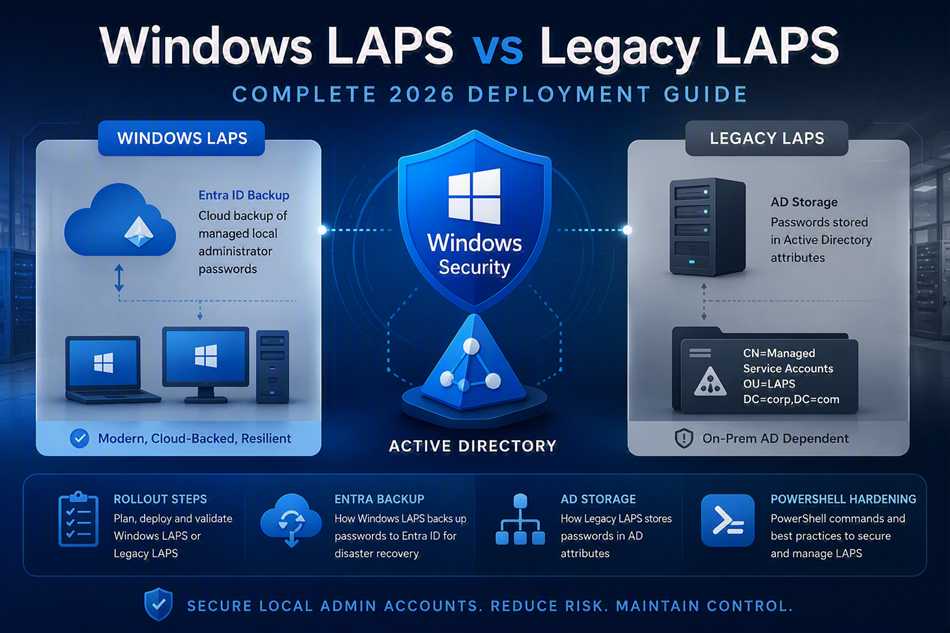
If you support modern Windows clients or hybrid identity, deploy Windows LAPS. Use Legacy LAPS only when older systems or applications force you to keep it. The table below gives the fast decision before the full implementation walkthrough.
| Question | Windows LAPS | Legacy LAPS |
|---|---|---|
| Best fit | Windows 11/Server 2022+ and hybrid environments | Older environments that cannot move yet |
| Password backup target | Active Directory or Microsoft Entra ID | Active Directory only |
| Security posture | Preferred modern baseline with Microsoft support | Fallback path for legacy compatibility |
| Recommendation | Default choice for new deployments | Use only when migration is blocked |
Introduction: Why LAPS Matters
Shared local administrator passwords are one of the fastest paths to lateral movement and privilege escalation in enterprise environments. A single compromised workstation gives attackers instant admin access to every other machine in the domain using that same password.
LAPS (Local Administrator Password Solution) solves this by:
- Unique passwords per device — Every local admin account gets a randomly generated, unique password
- Automatic rotation — Passwords change on a schedule (30 days default)
- Centralized management — Active Directory stores encrypted passwords; only authorized users can retrieve them
- Breaks lateral movement chains — Even if one workstation is compromised, the attacker cannot use that password anywhere else
- Audit trail — Active Directory logs all password retrievals for compliance
War Story: The $2M Lateral Movement
The Situation: A mid-market company had the same local admin password on 500+ servers. An attacker compromised one development workstation via phishing. Within 48 hours, they had domain controller access and a copy of the entire AD database.
The Impact: $2M in incident response, forensics, credential reset, and compliance notifications. Six months of breach investigations.
The Lesson: Implement LAPS immediately. Unique, rotated local admin passwords eliminate this entire attack vector.
What is LAPS?
LAPS is a Microsoft security solution that manages local administrator account passwords across networked computers. It integrates with Active Directory to rotate and store these passwords securely. Retrieving the password is only possible for authorized administrators, or delegated groups.
Key Concept: LAPS automatically generates unique, complex passwords for the local Administrator account on each device and stores the encrypted password in Active Directory. Only authorized administrators can retrieve the password when needed.
How LAPS Works (High Level)
- Installation — Deploy LAPS agent (Windows Update on Win11/2022, or legacy installer for older versions)
- Generation — Agent generates a random 30-character password locally
- Storage — Password is encrypted and stored in Active Directory (computer object) or Entra ID
- Rotation — Every 30 days (default), a new password is generated and stored
- Retrieval — Authorized admins query AD or EntraID to retrieve the password via UI or PowerShell
- Usage — Admin uses the password for remote access, recovery, etc. Password expires in AD after use window
LAPS v1 vs LAPS v2: Key Differences
Microsoft released LAPS v2 in 2023, which is now the recommended approach. Here's how they differ:
| Feature | LAPS v1 (Legacy) | LAPS v2 (Modern) |
|---|---|---|
| Release | 2015 | 2023 |
| OS Support | Windows Server 2012 R2+, Win10 | Windows 11 21H2+, Server 2022+ |
| Deployment | MSI installer via GPO/SCCM | Built-in; enabled via GPO |
| Password Storage | Active Directory (ms-Mcs-AdmPwd attribute) | Active Directory + option for EntraID |
| Password Length | 4-64 characters | 4-64 characters |
| Authentication Method | Kerberos (AD only) | Kerberos + hybrid support |
| Supported Machines | Domain-joined only | Domain-joined + Entra-joined + hybrid |
| Recommendation | Legacy; use if Win10/2012R2 support needed | Use for all new deployments |
Decision Rule: If your environment is Windows 11 + Server 2022+, deploy LAPS v2. If you have older Windows 10 or Server 2019 machines, start with v2 for new machines and keep v1 for legacy.
Prerequisites & Requirements
Infrastructure Requirements
- Active Directory — Windows Server 2008 R2 or later (schema update required for v1)
- Operating Systems:
- LAPS v2: Windows 11 (21H2+), Windows Server 2022+
- LAPS v1: Windows 10 (any version), Server 2012 R2+
- Network Connectivity — Machines must reach a domain controller for LAPS operations
- Group Policy — GPO infrastructure for deploying LAPS settings (optional for v2 on Entra-only environments)
Permissions & Security
- AD Schema Admin — Required for initial LAPS v1 schema update (one-time)
- GPO Edit Rights — To create/modify LAPS GPOs
- RBAC for Password Retrieval — Define which groups can retrieve local admin passwords
- No Domain Admin Required — LAPS agents run under SYSTEM, not privileged accounts
Software & Tools
- LAPS Management UI (v1) — GUI tool to retrieve passwords (optional; PowerShell alternative available)
- PowerShell Module — For scripting password retrieval and reporting
- Group Policy Editor — For LAPS configuration
Planning & Design Considerations
Enterprise Deployment Design Model
For enterprise environments, LAPS design is not a single GPO task. It is an identity, operations, and recovery design exercise. The choices below determine whether deployment is sustainable at scale or becomes a recurring incident source.
1. Choose the Right Rollout Pattern
| Rollout Pattern | When to Choose It | Strengths | Trade-offs | Enterprise Control Requirement |
|---|---|---|---|---|
| Phased by Risk Tier (Tier 0/servers first) |
Security-driven programs where privileged assets must be hardened first | Fastest reduction of high-impact attack paths | Longer overall rollout timeline | Clear tier classification and explicit exception process |
| Phased by Business Unit | Federated IT models with separate support teams and change windows | Aligns with operational ownership and local change cadence | Inconsistent policy posture during transition | Central baseline with delegated but auditable local implementation |
| Big Bang | Small, homogeneous environments with mature endpoint governance | Fast standardization and reduced coexistence complexity | Highest blast radius if scoping or RBAC is wrong | Validated pilot, tested rollback, and staffed incident window |
2. Design Decisions and Their Operational Implications
| Design Area | Decision You Must Make | If Done Well | If Done Poorly | Recommended Enterprise Pattern |
|---|---|---|---|---|
| Scope | Which endpoint classes are in policy (Tier 0 servers, member servers, workstations, kiosks, privileged admin workstations) | Predictable coverage and measurable risk reduction | Blind spots where shared local admin credentials remain exploitable | Start with privileged and server tiers, then expand to all managed endpoints |
| OU and GPO Topology | Whether to split policy by endpoint type, risk tier, or lifecycle state (pilot/production) | Controlled rollout and safer change management | Mislinked GPOs affecting unintended OUs or unsupported device classes | Separate pilot and production GPOs; separate workstation and server policy scope |
| Password Policy | Rotation interval, length, complexity, and post-authentication behavior | Lower credential exposure with acceptable support overhead | Too permissive increases attack surface; too aggressive breaks operations | Define by tier: stricter rotation and post-auth actions for higher privilege systems |
| Access Control | Who can retrieve passwords, under what workflow, and with what approvals | Least-privilege retrieval with auditable accountability | Password access sprawl through broad delegated rights | Dedicated retrieval groups, JIT workflow, and mandatory ticket correlation |
| Legacy Coexistence | How v1 and v2 are separated during transition | Smooth migration with no policy collision | Confusion on retrieval path and inconsistent endpoint behavior | Time-box coexistence with explicit migration milestones and retirement date |
| Backup Target | Whether passwords are backed up to Active Directory or Entra ID per endpoint class | Aligned retrieval model for each identity plane | Incident delays due to uncertainty about where password data is stored | Use one backup target per endpoint category and document retrieval runbooks |
| Monitoring and Audit | What events are collected, retained, and reviewed (retrieval, rotation, failures, denied access) | Early detection of misuse and deployment drift | No evidence trail for forensic analysis or compliance proof | Forward LAPS-relevant events to SIEM and alert on anomalous retrieval patterns |
Common Enterprise Failure Pattern
Most failed LAPS rollouts are not technical failures. They are design failures: over-broad retrieval rights, unclear backup target boundaries, and no tested break-glass workflow. Treat this section as an architecture gate, not a checklist.
3. Minimum Design Artifacts Required Before Pilot
- Scope Map — Endpoint categories, ownership, and rollout waves
- GPO Topology Diagram — OU links for pilot and production paths
- Retrieval RBAC Model — Named groups, approval flow, and emergency access rules
- Policy Baseline — Rotation, length, complexity, post-auth actions by tier
- Monitoring Specification — Event sources, alert rules, retention, reporting cadence
- Rollback and Break-glass Runbook — Tested recovery path for failed policy or endpoint lockout scenarios
LAPS v2 Deployment (Recommended)
LAPS v2 is built into Windows 11 (21H2+) and Server 2022+. You enable it via Group Policy.
Step 1: Prepare Active Directory (Schema Check)
LAPS v2 requires AD schema updates. Check if they're applied:
Step 2: Create LAPS Group Policy Objects (GPOs)
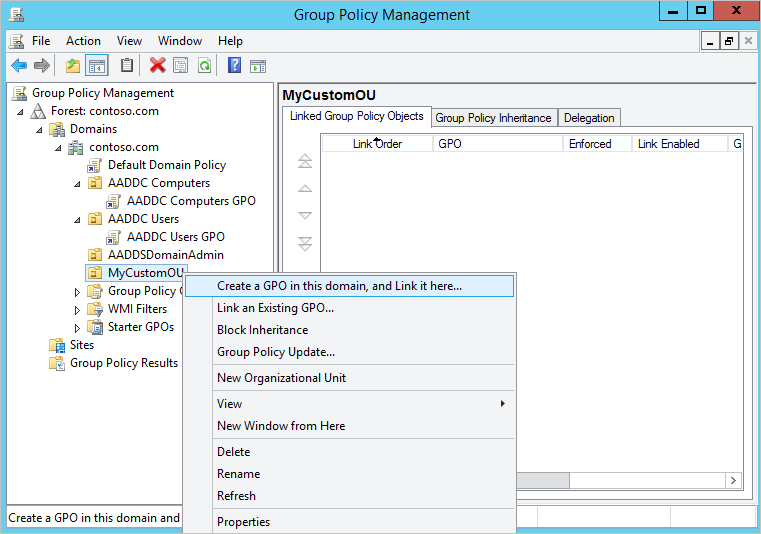
Create and link the GPO manually in GPMC to avoid hardcoded OU paths and ensure the configuration matches your production OU design:
- Open Group Policy Management (
gpmc.msc). - Navigate to your domain and identify the OU that contains the target computers (workstations, servers, or pilot OU).
- Right-click the OU and select Create a GPO in this domain, and Link it here...
- Name it clearly, for example: LAPS v2 - Workstations or LAPS v2 - Servers.
- Confirm the new GPO is linked to the intended OU only (no broad domain-level linking unless explicitly required).
Step 3: Configure LAPS Password Policy
Configure policy settings directly in GPMC so values are explicit, reviewed, and aligned with your security baseline:
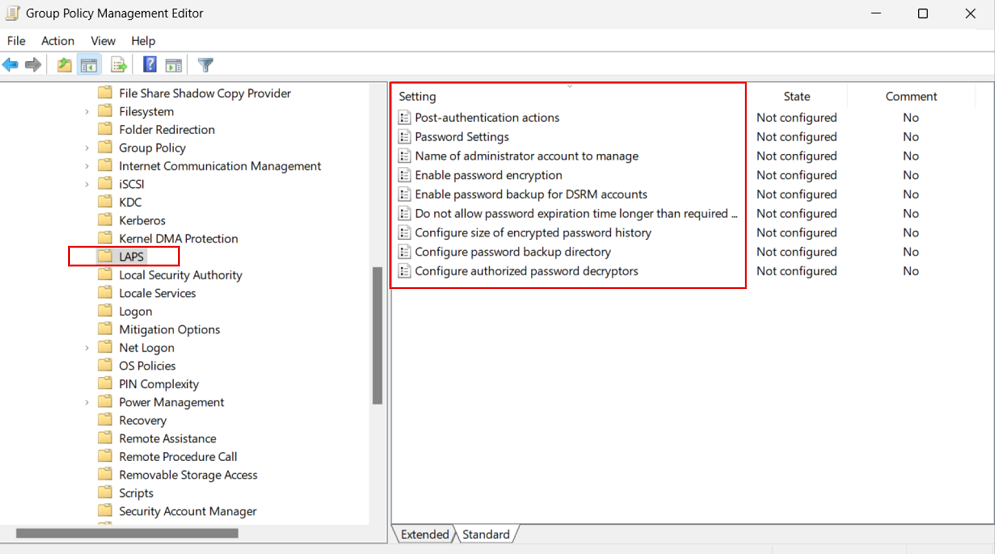
- In Group Policy Management, right-click your LAPS v2 GPO and select Edit.
- Go to Computer Configuration > Policies > Administrative Templates > System > LAPS.
- Configure at minimum:
- Enable local admin password management: Enabled
- Password settings: Length and complexity per your baseline
- Password age (days): Rotation interval (for example, 30 days)
- Name of administrator account to manage: Only if using a custom local admin name
- Directory backup: Active Directory (or Entra ID for applicable scenarios)
- Close the editor and allow normal refresh cycle, or force policy update on a pilot
client with
gpupdate /force.
LAPS GPO Settings Reference (What Each Setting Does)
Use this reference when defining your baseline. Every setting should be decided by risk, operational model, and recovery requirements.
| GPO Setting | What It Controls | Recommended Baseline | Pros | Cons / Risks |
|---|---|---|---|---|
| Configure password backup directory | Where LAPS stores managed local admin passwords (Active Directory or Entra ID) | Choose per device identity model; do not mix without clear scope boundaries | AD: mature delegation model, familiar ops workflows. Entra ID: cloud-native management, better for Entra-joined endpoints. | AD: requires reliable line-of-sight to domain services. Entra ID: operational change for teams used to AD-only retrieval and RBAC patterns. |
| Enable local admin password management | Turns LAPS management on or off for targeted devices | Enabled for all in-scope endpoints via phased rollout | Eliminates shared static local admin passwords and reduces lateral movement | If enabled without scoping/validation, can impact break-glass processes |
| Password age (days) | How frequently the managed local admin password rotates | 30 days for most environments; reduce for high-risk tiers | Frequent rotation limits password exposure window | Very short intervals may increase support workload during recovery operations |
| Password length | Character length for generated local admin passwords | 20-30+ characters (30 is common enterprise default) | Longer passwords significantly increase brute-force resistance | Long values can increase manual entry friction in emergency console scenarios |
| Password complexity | Allowed character sets and entropy requirements | Use full complexity for privileged tiers and servers | Higher entropy makes offline guessing and password spray far less practical | May be harder to transcribe manually if out-of-band access is needed |
| Name of administrator account to manage | Which local account LAPS rotates (built-in Administrator or custom) | Define only if you use a custom local admin standard | Supports environments that renamed/standardized local admin naming | Wrong account mapping can leave the intended privileged account unmanaged |
| Post-authentication actions | Action after password use (for example rotate and optionally sign out sessions) | Rotate immediately after use for privileged tiers | Reduces persistence risk after administrative sign-in | Aggressive actions can interrupt active troubleshooting sessions |
| Post-authentication reset delay | Time window before post-authentication rotation/action occurs | Short delay aligned with operational runbooks | Allows controlled admin work while still enforcing rapid credential turnover | If too long, exposure window remains open after privileged access |
| Password expiration protection | Prevents policy conflicts from causing stale/expired managed passwords | Enabled | Improves reliability and prevents unmanaged credential state | Requires policy consistency; conflicting baselines still need remediation |
AD vs Entra decision tip: If endpoints are domain-joined and your retrieval workflow is AD/GPMC centric, AD backup is usually the lower-friction path. If devices are Entra-joined and operated cloud-first, Entra backup is typically the cleaner operational model. In hybrid estates, keep assignment boundaries explicit to avoid retrieval confusion during incidents.
Step 4: Define Access Control (Who Can Retrieve Passwords?)
Access control is the most critical part of LAPS design. If password retrieval rights are too broad, LAPS becomes a password distribution system instead of a security control. Build retrieval rights with the same tier model and delegation principles used for privileged AD administration.
Use these EguibarIT references as the design baseline:
- Enterprise Access Model (EAM) — define Tier 0, Tier 1, and Tier 2 boundaries before assigning retrieval rights
- RBAC in Active Directory — model access by role, not by individual admin accounts
- Delegation Model — map tasks to scoped permissions and accountable owners
- How to Build the Delegation Model — implement AD groups and OU-level delegation consistently
Role Model for LAPS Retrieval (Enterprise Pattern)
Domain Controller nuance: Domain Controllers do not use the same local Administrator model as member servers and workstations. For DCs, recovery operations are typically tied to the DSRM recovery account. Plan separate retrieval roles and approval workflows for DC recovery versus standard endpoint local admin password retrieval.
| Platform Type | Password Context | Primary Use Case | RBAC Recommendation |
|---|---|---|---|
| Member Servers / Workstations | Managed local administrator account password | Operational admin, break-fix, remote maintenance | Tier-scoped reader groups by OU and business scope |
| Domain Controllers | Recovery-oriented account context (for example DSRM) | Directory Services recovery and emergency domain controller maintenance | Dedicated Tier 0 recovery reader group with stricter approval and audit controls |
| Role | Tier | What It Can Do | What It Must NOT Do | Implementation Guidance |
|---|---|---|---|---|
| LAPS Policy Admins | Tier 0 | Create and modify LAPS GPO settings and delegation ACLs | Routine password retrieval for endpoints | Use dedicated admin accounts and PAW-only administration path |
| LAPS Password Readers - Tier 0 | Tier 0 | Retrieve passwords for Tier 0 endpoints and approved recovery contexts (for example DC recovery/DSRM workflows) | Access Tier 1/2 endpoints by default | Separate group; require approval/ticket reference for each retrieval |
| LAPS Password Readers - Tier 1 | Tier 1 | Retrieve passwords for server/admin infrastructure in assigned scope | Read Tier 0 assets or workstation estates outside scope | Delegate only to specific OUs; enforce named-user accountability |
| LAPS Password Readers - Tier 2 | Tier 2 | Retrieve workstation local admin passwords in assigned business scope | Any server, DC, or privileged admin workstation password retrieval | Time-bound access where possible; deny broad inherited rights |
| LAPS Auditors / Security Operations | Tier 0/1 security oversight | Review retrieval logs, failed access, and anomaly patterns | Operational password retrieval unless explicitly approved | Read-only monitoring role with SIEM correlation and periodic review |
Delegation Design Rules (Before Applying ACLs)
- Separate by Tier and Scope: Never use one global "LAPS Readers" group. Build role groups per tier and per OU scope.
- Delegate to Groups, Not Users: Keep identity lifecycle in group membership workflows; avoid direct user ACE assignments.
- Enforce Retrieval Accountability: Require ticket IDs/change IDs and log requester, target device, and reason for every retrieval.
- Protect the Delegation Path: Only Tier 0 admins can alter LAPS ACLs, GPO links, or policy settings.
- Define Break-glass Flow: Establish an emergency path with dual approval, short-lived access, and post-incident review.
Recommended Group Naming Convention
Use explicit names that encode function and scope, for example: GG-LAPS-Policy-Admins-T0, GG-LAPS-Recovery-Read-T0-DC, GG-LAPS-Read-T1-Servers, and GG-LAPS-Read-T2-Workstations-RegionX. This reduces delegation errors and makes audit reviews faster.
Do Not Reuse the Same Retrieval Group Everywhere
Do not use one shared reader group for member servers, workstations, and domain controllers. Keep DC recovery rights isolated in dedicated Tier 0 groups, and keep member server/workstation retrieval delegated to their own scoped groups.
Security Warning: Least Privilege for Password Retrieval
Critical: Do not grant broad read access on LAPS password attributes at domain root or high-level OUs. Retrieval must be scoped, role-based, auditable, and aligned to your tier model and delegation model.
Step 5: Verify LAPS v2 is Working
Validate deployment manually on a pilot endpoint and in Active Directory before broad rollout:
- On a test client in scope, run
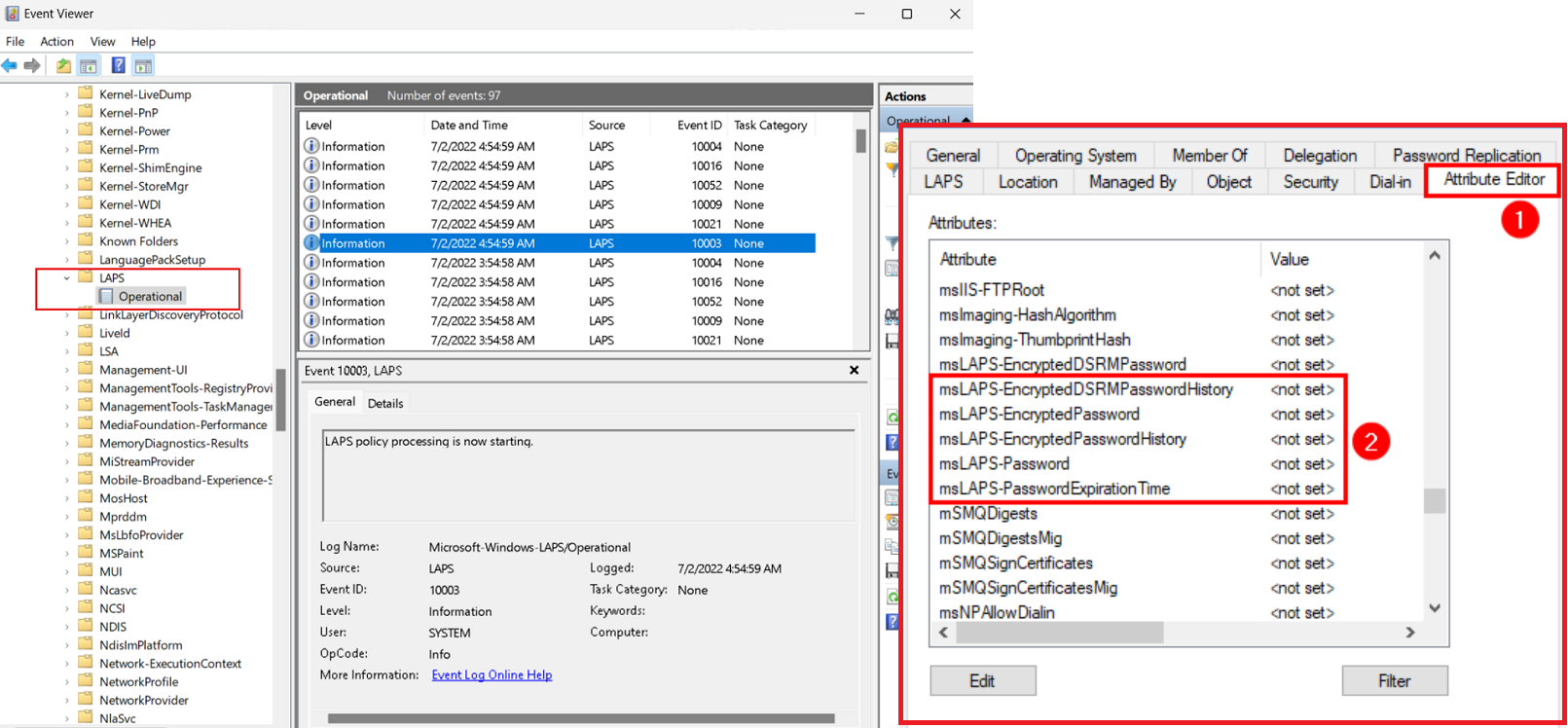
gpupdate /forceand confirm the LAPS GPO is applied withgpresult /r. - Open Event Viewer and review LAPS-related events under Applications and Services Logs for processing and rotation outcomes.
- In Active Directory Users and Computers (Advanced Features enabled), open the computer object and verify LAPS password metadata is present and updated.
- From an authorized admin account, perform a controlled password retrieval test and confirm access is blocked for unauthorized accounts.
- Document result timestamps and move from pilot OU to wider deployment only after successful validation.
LAPS v1 Deployment (Legacy / Mixed Environments)
If you support Windows 10 or Server 2019, use LAPS v1 for those machines. Here's a quick workflow:
Step 1: Update Active Directory Schema
Step 2: Download and Distribute LAPS v1 Installer
Download the LAPS v1 MSI from Microsoft and deploy via Group Policy or SCCM:
PowerShell Automation & Reporting
Retrieve LAPS passwords, generate reports, and audit access via PowerShell:
Get LAPS Password for a Single Machine
Bulk Export: All LAPS Passwords by OU
Audit: Who Retrieved Passwords and When?
Security & Hardening Considerations
📋 LAPS Security Checklist
- ✅ Use v2 for new deployments — v1 is legacy; v2 has modern protections
- ✅ Limit password retrieval groups — Only Tier 0/1 admins, never help desk
- ✅ Enable AD auditing — Log all LAPS password attribute reads
- ✅ Require MFA for admin accounts — Even with LAPS, require MFA for AD admin accounts that retrieve passwords
- ✅ Rotate passwords on schedule — 30 days default; consider 14 days for critical systems
- ✅ Monitor failed LAPS operations — Alert on rotation failures (often indicates malware/tampering)
- ✅ Enforce Tier Model — Tier 0 machines should have shorter rotation intervals (7-14 days)
- ✅ Encrypt AD traffic — Use LDAP over SSL (LDAPS) for password retrieval
Mitigating Common LAPS Risks
| Risk | Mitigation |
|---|---|
| Attacker reads LAPS from AD | Implement RBAC; restrict retrieval to specific groups; require MFA on admin accounts |
| Local admin account is disabled | Monitor LAPS rotation failures; audit events for account disablement |
| LAPS password cached locally | Configure LAPS to NOT cache password; enforce clean-up on retrieval |
| Compromise of admin account with retrieval rights | Use Tier 0 PAW for password retrieval; require MFA; use JIT access (temporary elevation) |
Operations & Maintenance
LAPS operational success depends on monitoring, maintenance, and rapid response to failures. These operational procedures are based on enterprise best practices and should be tailored to your environment's size and complexity. Automate as much as possible using PowerShell and scheduled tasks to reduce manual effort and human error.
Daily Tasks
| # | Name | Description | Task | Impact Definition | Automated |
|---|---|---|---|---|---|
| 1 | Monitor LAPS Rotation Status | Verify LAPS password rotation is occurring normally on all managed endpoints | Check Event Viewer for LAPS rotation events (Event ID 10016, 10017, 10018). Monitor for rotation failures or errors. Alert if rotation failure rate exceeds threshold (e.g., >5% of machines failing in 24 hours). | Early detection of LAPS failures indicates endpoint compromise, misconfiguration, or GPO application issues. Rapid response can prevent credential compromise. | Can be automated with scheduled PowerShell script querying Event Log and alerting on failures |
| 2 | Review LAPS Password Retrieval Audit Log | Audit who retrieved local admin passwords and when | Review Active Directory audit events for password attribute reads (ms-Mcs-AdmPwd). Flag unauthorized retrieval attempts. Correlate with change tickets to validate legitimate access. | Unauthorized LAPS password retrieval detected early indicating potential misuse. Insider threat detection improved through access auditing. | Can be automated by querying AD audit logs and alerting on suspicious activity |
| 3 | Alert Response - LAPS Rotation Failures | Investigate and resolve LAPS password rotation failures | For each LAPS rotation failure alert: (1) Verify endpoint is online, (2) Confirm GPO is applying (gpresult /h), (3) Check for malware/tampering, (4) Validate endpoint replication to AD, (5) Force manual LAPS cycle if misconfiguration. | Rotation failures resolved preventing credential age issues. Endpoint compromise detected through investigation. LAPS reliability maintained. | Requires manual investigation but can be partially automated with health checks |
Weekly Tasks
| # | Name | Description | Task | Impact Definition | Automated |
|---|---|---|---|---|---|
| 1 | LAPS Password Coverage Report | Verify all targeted endpoints have LAPS passwords managed and current | Generate report of all endpoints with ms-Mcs-AdmPwd attribute populated. Identify missing endpoints (not configured yet, excluded, or failed registration). Verify password age is within policy (not stale >45 days). | Full LAPS coverage verified. Endpoints without active LAPS password identified for troubleshooting. Stale passwords detected preventing cryptographically weak credentials. | Can be automated with PowerShell script comparing AD endpoints against LAPS passwords |
| 2 | Verify Access Control Configuration | Ensure only authorized groups can retrieve LAPS passwords | Review AD object permissions on Computer objects for ms-Mcs-AdmPwd read access. Verify delegated groups (per RBAC model). Validate no over-broad permissions granted. Audit DomainAdmins access removal if delegated. | Over-broad LAPS access identified and corrected. Unauthorized retrieval paths closed. Least-privilege access maintained. | Can be partially automated with permission enumeration scripts |
| 3 | Validate LAPS Password Retrieval Functionality | Test that authorized admins can successfully retrieve LAPS passwords | Retrieve test password for pilot endpoint. Verify retrieval in multiple retrieval tools (AD Users & Computers, PowerShell, LAPS portal if available). Test emergency break-glass retrieval path. | Retrieval functionality validated ensuring admin access to passwords during incidents. Break-glass path tested for emergency scenarios. | Manual testing required but can be incorporated into runbook validation |
Monthly Tasks
| # | Name | Description | Task | Impact Definition | Automated |
|---|---|---|---|---|---|
| 1 | LAPS Comprehensive Deployment Audit | Verify LAPS is deployed to all required endpoints with expected configuration | Audit all in-scope endpoints: (1) LAPS installed and enabled, (2) GPO applied correctly (check gpresult), (3) Password attribute populated (ms-Mcs-AdmPwd present), (4) Rotation occurring on schedule. Identify non-compliant endpoints for remediation. | LAPS deployment compliance measured. Misconfigured endpoints identified. Incomplete rollout visibility achieved. | Can be automated with comprehensive PowerShell audit script |
| 2 | LAPS Failure Analysis and Resolution | Deep-dive investigation of any endpoints with stale LAPS passwords or unresolved failures | For endpoints with stale passwords (>45 days): (1) Verify endpoint online, (2) Check GPO linkage and filtering, (3) Review LAPS event log on endpoint, (4) Resolve any GPO application issues, (5) Force manual password reset if necessary. | Root cause of LAPS failures documented. Configuration drift corrected. Endpoint protection ensured. | Requires manual investigation but systematic troubleshooting approach |
| 3 | LAPS Documentation and Configuration Review | Verify LAPS design documentation is current and implementation matches design | Review and update: (1) LAPS GPO configurations against design baseline, (2) RBAC group membership and delegation model, (3) Password policy settings by tier, (4) Runbooks for common troubleshooting scenarios, (5) Recovery procedures. | Design/implementation drift detected. Documentation current for future reference. Operational runbooks maintained. | Manual review with automated documentation generation possible |
| 4 | LAPS Delegation Review | Validate RBAC delegated groups and permissions remain accurate | Review: (1) Members of LAPS reader groups (GG-LAPS-Read-T0-DC, etc.), (2) AD permissions for each delegated group, (3) Removal of terminated admin accounts, (4) Tier alignment of delegated access. | LAPS access rights stay aligned with current organizational structure. Former employees removed from access. Least-privilege maintained. | Can be partially automated with AD group membership enumeration |
Quarterly Tasks
| # | Name | Description | Task | Impact Definition | Automated |
|---|---|---|---|---|---|
| 1 | LAPS Security Posture Assessment | Comprehensive review of LAPS security configuration and controls | Assess: (1) Password retrieval audit logging enabled, (2) MFA requirements for admin accounts retrieving passwords, (3) Audit events configured properly, (4) No over-broad read permissions on ms-Mcs-AdmPwd attribute, (5) Break-glass procedure tested. | LAPS security controls validated. Unauthorized access paths closed. Audit trails verified for compliance. | Requires manual security assessment |
| 2 | LAPS Password Retrieval Trending Analysis | Review patterns of LAPS password retrieval for anomalies or misuse | Analyze retrieval logs: (1) Who is retrieving passwords (by group and user), (2) Which endpoints are being accessed, (3) Retrieval frequency and time-of-day patterns, (4) Identify unusual activity (off-hours, unusual users, bulk retrievals). | Unauthorized or anomalous password retrieval patterns identified indicating potential compromise or misuse. Baseline established for anomaly detection. | Can be automated with SIEM analysis or custom PowerShell trending reports |
| 3 | LAPS Disaster Recovery Test | Validate LAPS recovery procedures and emergency access workflows | Test: (1) Password retrieval when primary retrieval method fails, (2) Break-glass emergency access for locked-out endpoint, (3) Manual password reset procedures, (4) AD restore from backup (verify LAPS passwords recoverable). | Recovery procedures validated. Emergency access confirmed functional. Backup recovery tested. | Requires RFC approval for testing procedures |
Troubleshooting
LAPS Password Not Appearing in AD
Symptom: Ran gpupdate on client, but ms-Mcs-AdmPwd attribute is still empty.
Solutions:
- Check Event Viewer > Windows Logs > System for LAPS-related errors
- Verify LAPS GPO has applied (run `gpresult /h report.html` and search for LAPS policy)
- Ensure the machine account has permissions to update the ms-Mcs-AdmPwd attribute
- On v2, verify the machine is running Windows 11 21H2+ or Server 2022+
- Force a LAPS cycle: `Invoke-LapsCycle` (if using v2 PowerShell module)
Cannot Retrieve LAPS Password (Access Denied)
Symptom: Error: "Access Denied" when trying to read LAPS password via PowerShell.
Solutions:
- Verify your user account is a member of the group granted LAPS retrieval permissions
- Check AD permissions on the computer object: `dsacls "CN=COMPUTERNAME,OU=Computers,DC=domain,DC=com"`
- Ensure you're querying from a machine that can reach a domain controller
- Verify your user has "Read" permission on the ms-Mcs-AdmPwd attribute
LAPS Rotation Fails Repeatedly
Symptom: Event ID 10016 in System log; password not updating.
Solutions:
- Check if the local Administrator account is disabled or locked
- Verify network connectivity to a domain controller
- Check if antivirus/EDR is blocking LAPS operations
- Review LAPS GPO for syntax errors or policy conflicts
- On v1, confirm the LAPS agent service is running (`Get-Service LAPS`)
Resources & References
- Microsoft Learn: LAPS (Local Administrator Password Solution)
- LAPS Overview and Architecture
- LAPS PowerShell Module Reference
- Active Directory Housekeeping Tasks — LAPS Maintenance — Dedicated LAPS monitoring checks (password rotation health, audit events, Entra LAPS validation) integrated into the 316-point site-wide maintenance schedule
- EguibarIT: Privileged Access Workstations (PAW) — Complement LAPS with PAW for secure admin access
- EguibarIT: Tier 0 Delegation Model — Apply Tier Model to LAPS access controls
Next Steps
After implementing LAPS, strengthen your entire local admin strategy by:
- ✅ Deploying Privileged Access Workstations (PAWs) for Tier 0 admin access
- ✅ Enforcing Tier Model with LAPS access controls
- ✅ Implementing JIT (just-in-time) access for emergency password retrieval
- ✅ Rotating LAPS passwords on a tighter schedule for critical systems (Tier 0/1)